
Last updated April 2026
When traffic reaches a web page titled “Page not found” in Google Analytics 4, you know something went wrong, but you usually do not know much else.
Which URL was requested? Did the visitor come from your own website, another website, or bot traffic? Was it a real broken link or just noise?
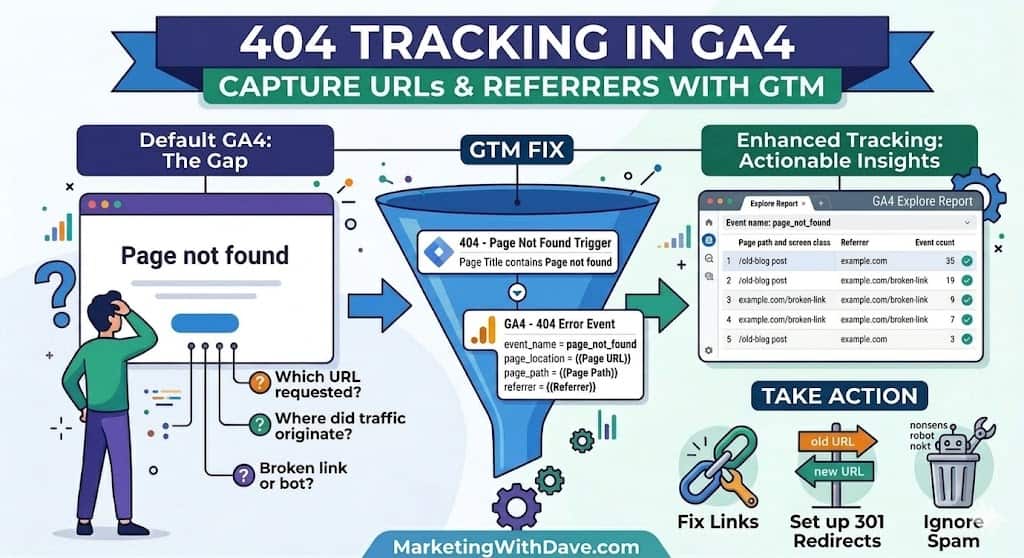
That is the gap this setup solves. With a small Google Tag Manager and GA4 configuration, you can capture the attempted URL and referrer whenever a 404 web page loads. That gives you the context needed to diagnose the issue and decide what to do next.
What this setup captures
This setup sends a custom GA4 event called page_not_found whenever a 404 web page loads.
Along with the event, it sends the full attempted URL, the requested path, and the referrer. That means you can see what the visitor tried to access and where they came from.
Instead of seeing only a generic “Page not found” title in your reports, you can see the actual destination that was requested.
Why better 404 tracking matters
Some 404s are real problems. They can reveal broken internal links, outdated destinations, or incorrect external links that cost traffic and hurt user experience.
Others are just noise, such as bots requesting junk URLs that never existed.
The goal is not to treat every 404 the same. The goal is to capture enough context to know which ones deserve action.
How to set up 404 tracking in Google Tag Manager
The first step is identifying your 404 web page condition. On many WordPress websites, the browser title contains the phrase “Page not found.” If that is true on your website, you can use it as your trigger condition.
If you do not already have a Page Title variable available, create one in Google Tag Manager as a JavaScript Variable using:
document.title
Next, create a new trigger in Google Tag Manager.
Name the trigger something like:
404 - Page Not Found
Set the trigger type to:
Page View
Choose:
Some Page Views
Then use this condition:
Page Title contains Page not found
That tells GTM to fire only when a 404 web page loads.
How to send the 404 event to GA4
After the trigger is in place, create a new GA4 Event tag in Google Tag Manager.
Name it something like:
GA4 - 404 Error
Use your existing GA4 configuration tag.
Set the event name to:
page_not_found
Then add these event parameters:
page_location = {{Page URL}}
page_path = {{Page Path}}
referrer = {{Referrer}}
Attach the 404 - Page Not Found trigger to the tag and publish the container.
At that point, GA4 will start receiving a dedicated 404 event with enough context to investigate what happened.
How to build the GA4 report
The easiest long-term approach is to build an Explore report in GA4 focused only on the page_not_found event.
Go to Explore and create a Free Form exploration.
Add these dimensions:
Event name
Page path and screen class
Add this metric:
Event count
Then apply a filter where:
Event name exactly matches page_not_found
This gives you a simple report showing which broken URLs are being requested most often.
Once data is flowing, add referrer-related dimensions if they are available in your property.
How to interpret the data
Once 404 tracking is live, the next step is deciding what kind of problem each broken URL represents.
If you see a clean-looking path that resembles a real article, category, or resource, that is often a legitimate issue. It may be an outdated internal link, a changed URL, or an old destination that still receives traffic.
If you see a bad path with an external referrer, that usually points to an incorrect backlink. In many cases, a redirect is the right fix.
If you see bizarre paths that never looked like real website content, especially with no meaningful referrer, that is often just spam or automated scanning. In those cases, the right action may simply be to ignore it.
What action you can take from this data
The value of better 404 tracking is that it gives you a short list of decisions instead of a vague warning.
If the broken URL is caused by a bad internal link, fix the source link.
If the URL used to exist and still gets meaningful traffic, consider a 301 redirect.
If the request comes from another website, decide whether the traffic is worth recovering with a redirect.
If the path is obvious junk, treat it as noise and move on.
Why this setup is worth it
Out of the box, GA4 can tell you that a 404 happened. This setup tells you what was requested and where it came from.
That makes it easier to fix broken internal links, recover traffic with redirects, and ignore junk requests that do not matter.
It is a small implementation, but it turns vague 404 reporting into something you can actually use.