
Last updated July 2026
If you want better content analysis in Google Analytics 4, tracking just URLs is not enough. A list of individual web pages can tell you what got traffic, but it does not make it easy to understand which kinds of content are actually driving your website forward.
That is where page type tracking can help. Instead of only measuring individual URLs, you can classify each web page by format and send that value into GA4 as a custom parameter. This makes it possible to analyze performance by content type, such as case studies, book summaries, calculators, site search, the home page, and anything that does not yet fit into a defined bucket.
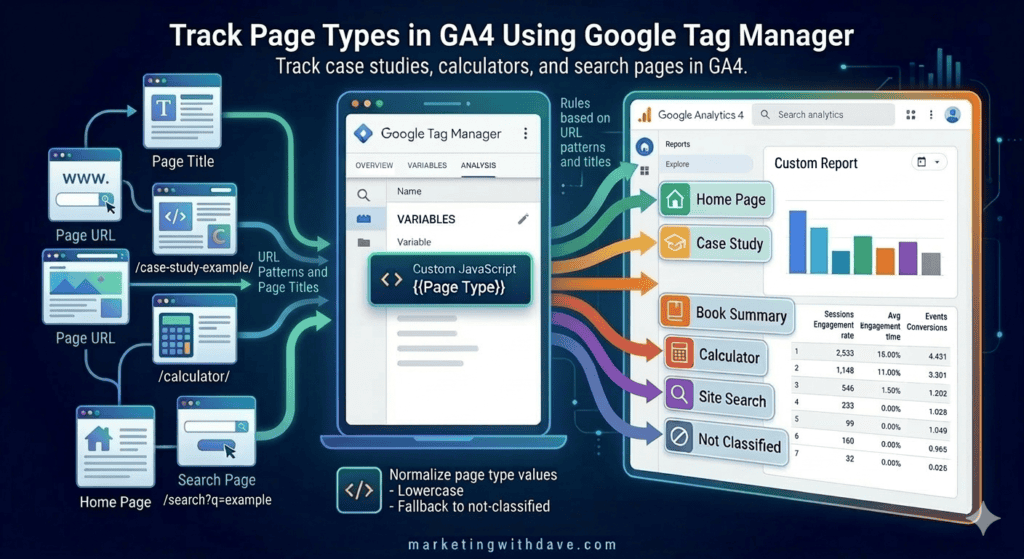
In my case, I used Google Tag Manager to identify page types based on URL patterns and page titles, then passed that value to GA4 using a custom parameter called page_type.
What page type tracking does
Page type tracking adds a structural content layer to your analytics. Instead of only seeing that a specific web page got traffic, you can now understand whether that traffic came from a case study, a calculator, a book summary, a home page visit, or some other kind of content.
Examples of page type values might include:
home-pagecase-studybook-summarycalculatorsite-search404not-classified
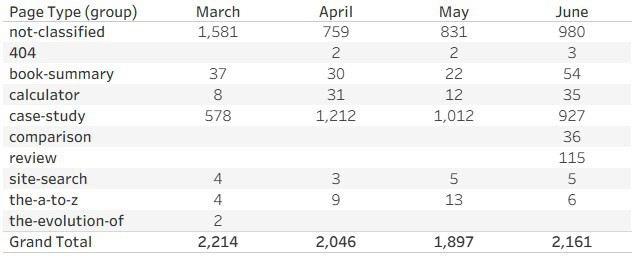
Once the custom dimension had been collecting data for a few months, I could finally analyze traffic by page type instead of individual URLs. Here’s what that report looks like on my own site.
Why page type tracking is useful in GA4
Once page type is available as a custom dimension, GA4 becomes much more useful for content analysis.
You can answer questions like:
- Which page types attract the most sessions?
- Which page types drive the strongest engagement?
- Which page types are most likely to bring in organic traffic?
- How much of my website still falls into a general not-classified bucket?
This becomes even more powerful when combined with topic tracking, because you can analyze both the format of the web page and the subject of the content.
Before you start
This walkthrough presumes:
1. You are using Google Tag Manager.
2. Your GA4 page_view event is firing through GTM.
3. Your website has consistent URL patterns or titles that can be used to identify different page types.
4. You want page types to be stable over time and mutually exclusive.
Why page type rules need to be precise
A page type should describe the format of the content, not the topic. For example, case study is a page type. Martech is a topic. Those are different things and should be tracked separately.
The goal is to give each web page one clear page type value. That keeps the classification stable and makes reporting easier to trust.
It is also important not to create too many page types too quickly. A small, meaningful set is usually better than trying to classify every edge case on day one.
Step 1: Define your page type values
Start by deciding which page types your website actually needs. In my setup, I used these values:
home-pagecase-studybook-summarycalculatorsite-search404not-classified
The first several values represent meaningful content structures. The final value, not-classified, acts as an intentional catch-all bucket.
Why not-classified matters
If no matching rule is found, the script returns not-classified.
This is not a mistake. It is a useful fallback. It gives you a deliberate “other” bucket so that uncategorized web pages do not get confused with GA4 system labels like not set. Over time, monitoring the percentage of sessions tied to not-classified can help you decide whether more page types are needed or whether the current taxonomy is already healthy.
Step 2: Create a Custom JavaScript Variable in Google Tag Manager
In GTM, create a new User-Defined Variable using the Custom JavaScript variable type.
Name it something like:
Page Type
Then use logic that checks the current URL path and page title to determine the correct page type.
Here is an example:
function() {

var path = window.location.pathname.toLowerCase();
var url = window.location.href.toLowerCase();
var title = document.title.toLowerCase();

if (
  title.includes("marketing with dave - all things digital marketing") ||
  title.includes("marketing with dave | all things digital marketing")
) {
  return "home-page";
}

if (title.includes("404")) {
  return "404";
}

if (url.includes("/search/?q=")) {
  return "site-search";
}

if (path.includes("case-study")) {
  return "case-study";
}

if (path.includes("book-summary")) {
  return "book-summary";
}

if (path.includes("the-a-to-z")) {
  return "the-a-to-z";
}

if (path.includes("the-evolution-of")) {
  return "the-evolution-of";
}

if (
  path.includes("calculator") ||
  path.includes("analyzer") ||
  path.includes("tools")
) {
  return "calculator";
}

return "not-classified";

}
How the script works
This script checks a small set of rules in order.
1. It looks for the home page title.
2. It checks for a 404 title.
3. It checks for a site search URL pattern.
4. It checks for specific URL structures like case-study, book-summary, the-a-to-z, and the-evolution-of.
5. It checks for calculator-related words in the URL.
6. If no match is found, it returns not-classified.
The order matters. More specific rules should always come before the fallback bucket.
Step 3: Add page_type to your GA4 page_view tag
Once the variable is created, open the GA4 page_view tag in Google Tag Manager.
If you have both a standard page_view tag and an internal version, update both so the data stays consistent.
In Event Parameters, add:
page_type = {{Page Type}}
This tells GTM to send the resolved page type value with each page_view event.
Step 4: Preview your changes in GTM
Before publishing, use Preview mode in GTM.
Visit several web pages on your website and verify that the variable returns the right values.
Examples:
A case study URL should return case-study.
A book summary URL should return book-summary.
A calculator or analyzer web page should return calculator.
The website home page should return home-page.
A regular article that does not match any defined rule should return not-classified.
Step 5: Publish the GTM container
Once Preview mode confirms the values are correct, publish the GTM container.
At that point, GTM is sending the page_type parameter to GA4, but GA4 still needs one final setup step before you can use it in reporting.
Step 6: Register the custom dimension in GA4
In GA4, go to Admin, then Custom definitions.
Create a new custom dimension with these settings:
Dimension name: Page Type
Scope: Event
Event parameter: page_type
Save the dimension.
From that point forward, GA4 will store and report on the page_type parameter.
Important note about historical data
GA4 custom dimensions are not retroactive.
This means page type data will only be available for traffic collected after the GTM changes are published and the custom dimension is created.
If you want a historical view, you would need to recreate it manually using existing URLs in a spreadsheet or another reporting layer.
How to analyze page type in GA4
Once the data starts flowing, one of the simplest and most useful reports is an Exploration showing sessions by page type.
A basic starting point is:
Rows: Page Type
Values: Sessions
This quickly shows what percentage of traffic is going to case studies, calculators, book summaries, site search, and everything else.
You can also combine page type with content topic to build a matrix like:
Rows: Content Topic
Columns: Page Type
Values: Sessions
That helps you understand both what the content is about and what format it takes.
Why this works well for content-driven websites
If your website includes multiple recurring content formats, page type tracking gives you a much better structural view of performance.
Instead of relying only on individual URLs, you can now see how the website performs by content model.
That is useful for editorial planning, content investment decisions, and identifying which kinds of web pages are becoming your strongest entry points.
Final takeaway
Page type tracking is one of the most useful content upgrades you can make in GA4. It adds a structural layer that makes your reporting far more meaningful than a simple list of URLs.
If your website already has recognizable URL patterns or stable page titles, Google Tag Manager can classify those web pages automatically and send the values into GA4 with very little maintenance required later.
And by keeping not-classified as an intentional fallback, you retain visibility into the portion of your website that still sits outside your current content taxonomy.

