Last updated September 2026
Settings has three tabs:
- General — site-wide promotion behavior and Performance defaults
- License — your current license status and system information
- Diagnostics — tools for testing SiteSqueeze, previewing promotions, and understanding why a promotion does or does not display
General Settings
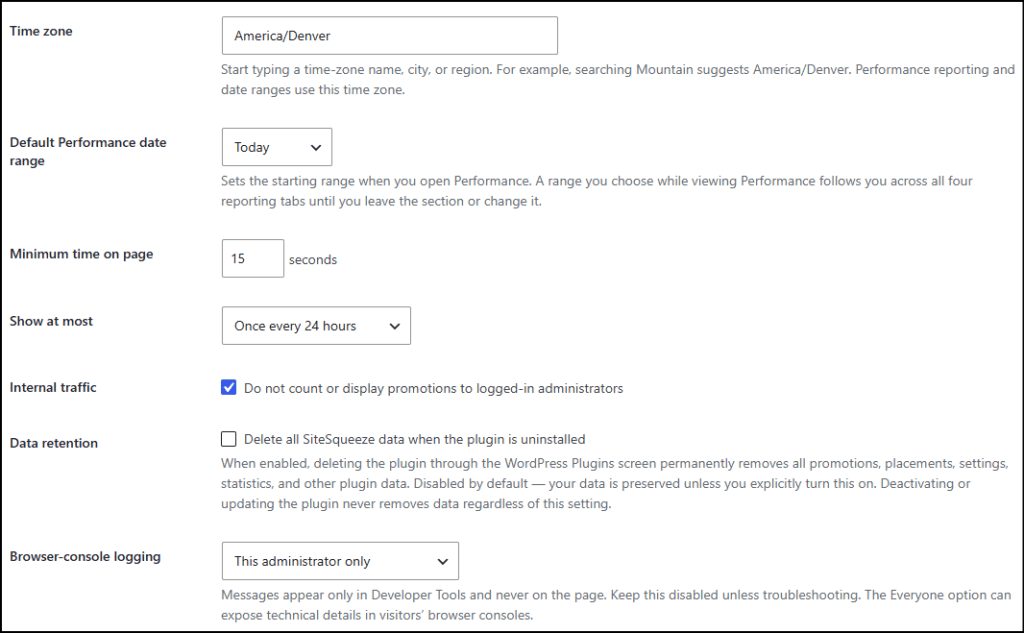
Time zone
SiteSqueeze uses this time zone to assign activity to a day and calculate Performance date ranges. If your site runs on America/Denver, a late-night impression gets assigned to Mountain Time, not UTC. Start typing a time zone, city, or region to find yours.
Default Performance date range
Sets the range SiteSqueeze shows when you first open Performance. It’s a starting point only: pick a different range while viewing Performance and that choice follows you across the reporting tabs until you leave or change it again.
Minimum time on page
How long a visitor stays before a promotion becomes eligible to display. Set it to 15 seconds, for example, and SiteSqueeze won’t show anything the instant someone lands on the page. A longer delay makes promotions less intrusive, but it also shrinks the pool of visitors who stick around long enough to see one. Ad Reach reporting shows you that tradeoff in practice.
Show at most
Caps how often the same visitor sees SiteSqueeze promotions. “Once every 24 hours” stops an eligible visitor from getting hit repeatedly as they move around your site. This limit applies across the whole promotion experience, so it can suppress displays on visits that would otherwise qualify.
Internal traffic
Enable “Do not count or display promotions to logged-in administrators” to prevent logged-in administrator activity from inflating Performance data or triggering promotions. This is especially useful for site owners and teams who regularly work in WordPress while logged in. When you need to deliberately test a promotion, use Settings → Diagnostics.
Data retention
SiteSqueeze keeps its data by default through deactivation, updates, and removal. Turn on “Delete all SiteSqueeze data when the plugin is uninstalled” only if you want WordPress to wipe promotions, placements, settings, and statistics when SiteSqueeze is deleted from the Plugins screen. Deactivating or updating alone never triggers this. Leave it off if there’s any chance you’ll reinstall or want to keep your history.
Browser-console logging
Browser-console logging provides technical troubleshooting information through browser Developer Tools; it never appears on the page itself. You can limit logging to the current administrator or make it available to everyone. The Everyone option can expose technical information in visitors’ browser consoles, so it should only be enabled when that’s intentional.
Data Management
Actions here permanently affect stored data.
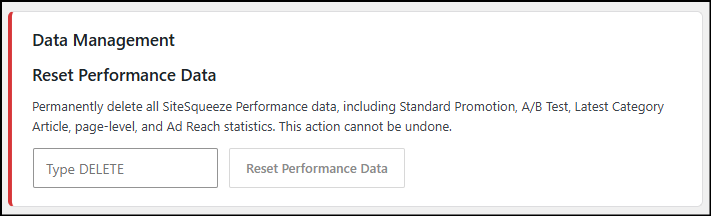
Reset Performance Data permanently deletes SiteSqueeze Performance history: Standard Promotion, A/B Test, Latest Category Article, page-level, and Ad Reach statistics. It cannot be undone, and SiteSqueeze makes you type DELETE to confirm. This is for starting over on purpose, not a troubleshooting step. If something looks wrong, that’s what Diagnostics is for (more below).
License
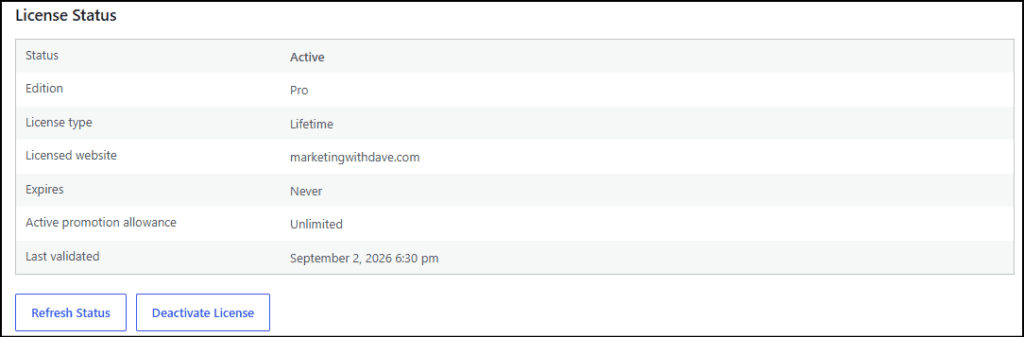
The License tab shows your current status and edition, license type, licensed website, expiration, active promotion allowance, and when it was last validated.
Refresh Status rechecks your license, useful after a change, upgrade, or renewal, or when the status looks wrong.
Deactivate License frees the current website from that license without touching your promotions, placements, settings, or Performance history.
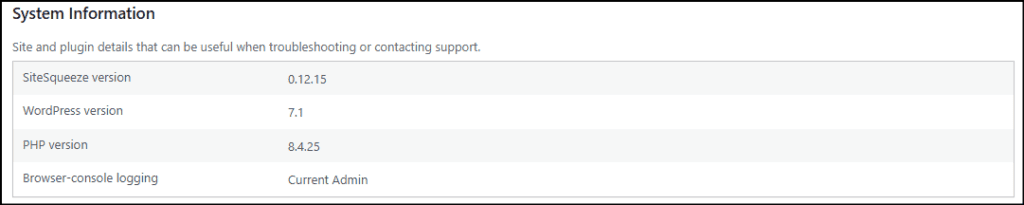
System Information lists your SiteSqueeze version, WordPress version, PHP version, and console-logging status. These details can be useful when troubleshooting or contacting support because they provide basic information about the WordPress environment where SiteSqueeze is running.
Diagnostics
Diagnostics answers one question: is SiteSqueeze working the way you expect? These tools help you test SiteSqueeze, preview promotions, and understand promotion-selection behavior without changing your normal site configuration.
Quick System Tests
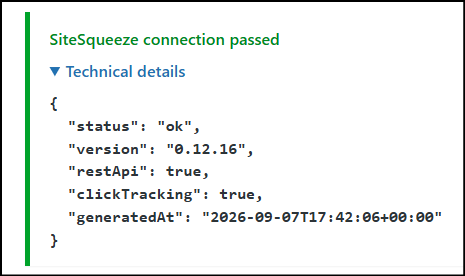
- Check SiteSqueeze Connection — confirms SiteSqueeze can talk to your WordPress site. Start here if nothing seems to be responding.
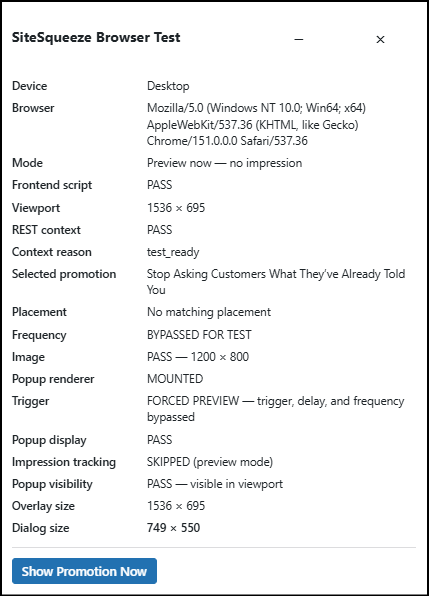
- Test Promotion Display — checks whether the browser can create and show an overlay, isolating a basic display problem from targeting or placement issues. No impression is recorded.
- Test Exit Intent — checks desktop exit-intent detection. Exit intent is a desktop behavior; for touch devices, use a test link with the live trigger instead.
Test a Promotion on Your Site
Creates a secure test link so you can see a real promotion on a real page without changing your live configuration.
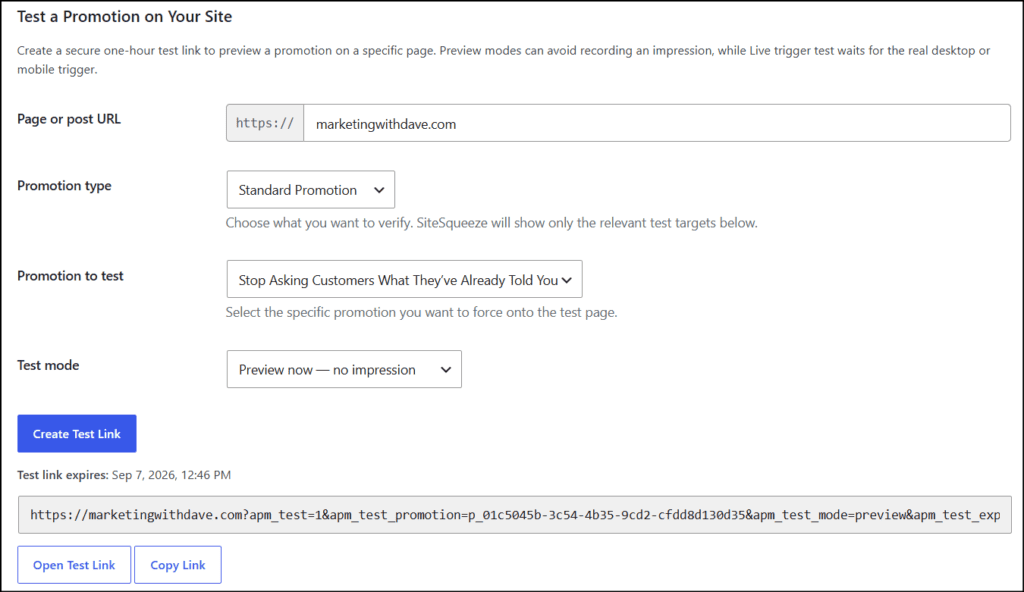
- Page or post URL — enter the destination without
https://; SiteSqueeze adds it for you. Use the actual page or post you want to test because placement rules, page type, and categories affect promotion eligibility. - Promotion type — Standard Promotion, A/B Test, or Latest Category Article, depending on your setup. SiteSqueeze narrows the remaining options to match.
- Promotion to test — for a Standard Promotion, select the specific promotion you want to force onto the test page.
- Test mode — “Preview now, no impression” checks appearance and function without touching Performance data. To test real trigger behavior, use the live-trigger option instead.
Select Create Test Link, then open it on the browser or device you actually want to test, phone included.
Explain Why a Promotion Displays
A page can match one placement and not another, several promotions can be eligible at once, or none at all. Instead of guessing, Analyze Page shows which placements match, which promotions qualify, and which promotion SiteSqueeze selects. Use Copy Report to save the results or hand them to support.
When to reach for Diagnostics
- A promotion isn’t showing where you expected
- You want to preview without recording an impression
- You want to test real trigger behavior, including mobile
- You’re not sure which placement applies to a page
- Multiple promotions could be eligible and you want to know why one won
- Support asks for a diagnostic report
Performance history survives normal updates, deactivation, and configuration changes; it’s built to. If something looks off, run Diagnostics before you touch Reset Performance Data. Resetting is for a deliberate clean slate, not a repair tool.
SiteSqueeze is coming soon.
I’m building a WordPress plugin designed to help marketers promote their own content, measure what works, and run practical A/B tests without pretending every website has enterprise-level traffic.
Join the list to know when SiteSqueeze launches.