I have purchased more than 130 AppSumo deals since December 2016. So, when I say AppSumo Plus is one of the few subscriptions I actually keep, that is based on years of buying, testing, refunding, and keeping software through the platform.
I test, review, and recommend lifetime software deals for small businesses. Not subscriptions. So when I tell you a subscription is worth it, I hope that means something.
The simple version: AppSumo Plus costs $99 per year and gives you back $100 in quarterly coupons. If you already buy AppSumo deals, the coupons cover the membership cost before you factor in a single discount. Everything else is upside.
The Math Is the Main Reason AppSumo Plus Works
The membership is $99 per year. Plus members receive $25 in coupons every quarter.
Item
Value
Why It Matters
Annual Plus Membership
$99/year
This is the cost you need to justify.
Quarterly Coupons
$25 x 4 = $100/year
Use all four and they offset the membership cost entirely.
Net Difference
+$1
Before counting the 10% discount, Sumo Day savings, Plus exclusives, or the 60-day refund window.
The coupons make the membership easy to justify. The discounts, refund policy, and member perks are what keep me renewing.
Five Reasons I Keep AppSumo Plus
1. $100 in Annual Coupons
$25 per quarter, automatically. Use all four and you have effectively received $1 for the membership before buying anything at a discount.
2. 10% Off Eligible Products
Automatic discount on eligible AppSumo products every time you buy. No coupon code. No expiration. It stacks on top of the quarterly credits.
3. Bigger Sumo Day Savings
Sumo Day is AppSumo’s annual sales event. Plus members can stack their normal 10% member discount with the event discount, creating some of the best pricing opportunities of the year.
4. The 60-Day Refund Window
This is the one that separates AppSumo from every competitor I have tried. I have had to follow up with other platforms to get a refund. In a few cases I have had to dispute the charge through my bank because the vendor would not honor it. AppSumo has never been that vendor. Sixty days, no friction, no follow-up required. That policy alone is why I do almost all of my software evaluation through AppSumo.
5. Plus Exclusives and Free Member Tools
Plus members get access to exclusive offers, extended shopping windows, and early access to new deals before they open to the general public. On a marketplace where new tools drop every Monday and popular tiers sell out fast, early access is a practical advantage, not a marketing bullet point.
Screenshot from AppSumo account
Free Plus Exclusives Worth Noting
The Plus Exclusives catalog changes, so I would not join only for one specific item. But the current free tools and resources include genuinely useful options beyond the coupon math.
Free Plus Exclusive
What It Does
SendFox
Email marketing software for scheduling and automating email growth.
KingSumo
Viral giveaway tool for growing leads and building an email audience.
The Sauce
Private business community for tech-savvy entrepreneurs.
Focusmate Private Group Access
Online coworking platform for getting focused work done.
Ali Abdaal’s Part-Time YouTuber Academy PDFs
13 templates for organizing, growing, and automating a YouTube channel.
AppSumo Masterclass Series
On-demand business and entrepreneurship training from AppSumo’s content library.
Tool Demos with AppSumo Partners
Live and recorded walkthroughs showing how operators actually use the tools before you buy.
The tool demos are underrated. Seeing a real use case before you commit is exactly the kind of pre-purchase research that speeds up your evaluation.
Who AppSumo Plus Is Really For
If you are the kind of person who regularly evaluates software, AppSumo Plus was built for you. New deals are announced every Monday, most run for a limited time measured in weeks or months, and tools frequently sell out their lower-tier plans before the deal closes. The $25 quarterly credit and 10% discount are not a one-time benefit. They are constant incentive to stay engaged with a marketplace that is genuinely active every week.
My Bottom Line
I have bought more than 130 AppSumo deals since 2016 and I keep Plus active every year. The math covers itself. The 10% discount lowers the cost of tools I was already considering. New deals come in every Monday and most run on a limited clock, so the discount is not a dormant perk sitting in an account I rarely visit. It gets used. And the 60-day refund policy makes testing software feel genuinely low-risk in a way that no other platform I have used comes close to matching.
Check Out AppSumo Plus
Review the current AppSumo Plus benefits, pricing, coupons, discounts, and member perks before deciding whether it fits your software-buying habits.
Affiliate disclosure: This page contains affiliate links. If you purchase through my links, I may earn a small commission at no additional cost to you.
Disclaimer: AppSumo Plus benefits, pricing, coupons, discounts, exclusives, refund terms, and purchase protection may change. Always verify the current offer directly before purchasing.
Calendly and TidyCal are appointment scheduling and calendar booking tools designed to eliminate the back-and-forth of finding meeting times. Both allow you to share booking links, manage availability, connect calendars, and schedule meetings online, but they target very different audiences.
Calendly has evolved into a scheduling platform built for teams, CRM workflows, and enterprise-scale operations. TidyCal takes a different approach: simpler setup, fewer moving parts, and a one-time purchase instead of an ongoing subscription.
The question is not which tool is better. It is which tool fits your workflow.
If you are…
Choose
Freelancer or solo business owner
TidyCal
Coach accepting paid bookings
TidyCal
Small agency managing client scheduling
TidyCal Agency ($79 one-time)
Sales team using Salesforce or HubSpot
Calendly
Recruiting team tracking candidates
Calendly
Enterprise organization with compliance requirements
Calendly
Why I Personally Chose TidyCal
I did not want another monthly subscription.
Paid bookings and reliable calendar scheduling mostly covered what I wanted. I didn’t need CRM integration and other enterprise functionality.
My workflow is using my desktop. If you live in your phone and need to edit bookings on the go, TidyCal does not have a mobile app. That matters and you should know it before you buy.
At $29 one-time with a 60-day refund window, the risk was low enough to test against my real workflow first.
What Each Tool Actually Does
TidyCal is built around a simple premise: set your availability, create booking types, connect your calendar, share a link, and get paid. It handles one-on-one, group, and recurring bookings, accepts payments through Stripe or PayPal, and integrates with Google Calendar, Apple iCal, Zoom, Google Meet, and Zapier. Setup is fast. The interface stays out of your way. It has processed over 3.7 million bookings since launching in 2021.
Calendly has grown well beyond booking links. It connects up to six calendars simultaneously, supports round-robin and collective scheduling, includes a native meeting notetaker, offers a contacts and relationship management layer, and connects to 100+ tools including Salesforce, HubSpot, and LinkedIn. Its pricing reflects that scope.
TidyCal gets you booked and paid. Calendly orchestrates scheduling across teams, workflows, and CRM systems.
Pricing and Plan Differences
For most buyers, this is where the decision starts. TidyCal’s biggest advantage is its one-time pricing model, while Calendly relies on recurring subscriptions. If you are a solo operator or small business owner trying to keep software costs under control, the differences here may matter more than any individual feature.
Feature
TidyCal
Calendly
Pricing model
Lifetime deal $29–$79 (AppSumo)
Free tier; $10–$16/seat/mo (paid plans)
Free tier
🔴 60-day refund window
🟢 Permanently free basic plan
Team members
0 (Individual) / Unlimited (Agency)
Unlimited (seat-based)
Custom branding / booking page
🟢 Reduced TidyCal branding
🟢 Paid plans
Custom domain
🔴 LTD plans
🟢 Paid plans
Core Scheduling Features
Both tools handle the fundamentals well. You can create booking pages, connect calendars, schedule meetings, and automate reminders. The differences are less about capability and more about depth, integrations, and flexibility.
Feature
TidyCal
Calendly
Booking types (1:1, group, recurring)
🟢 Unlimited
🟢 Unlimited
Date polls
🟢
🟢 Meeting polls
Calendar integrations
Up to 10 (Individual) / 25 (Agency)
Up to 6 calendars
Google Calendar
🟢
🟢
Microsoft 365 / Outlook
🟢 Intermittent sync delays reported
🟢
Apple iCal
🟢
🟢
Invite questions / intake forms
🟢
🟢
Automated reminders
🟢
🟢
SMS reminders
🟢 U.S. & Canada
🟢 Paid plans
Import existing bookings from Calendly
🟢
N/A
Team Scheduling and Meeting Management
This is where Calendly begins to separate itself. TidyCal works well for individuals and small teams, but Calendly was built with larger organizations, routing workflows, and multi-user scheduling in mind.
Feature
TidyCal
Calendly
Zoom / Google Meet
🟢
🟢
Microsoft Teams
Agency plan only
🟢
Round-robin scheduling
Agency plan only
🟢
Collective (multi-host) meetings
Agency plan only
🟢
Routing & conditional logic
🔴
🟢 Teams and above
Mobile app
🔴 Mobile website only
🟢 iOS and Android
Browser extension
🔴
🟢 Chrome, Edge, Firefox
Integrations, Analytics, and Enterprise Features
If your scheduling tool needs to connect with CRM systems, support compliance requirements, or provide deeper reporting and automation, Calendly has a clear advantage. These features are often unnecessary for freelancers and small businesses but become increasingly important as organizations grow.
Feature
TidyCal
Calendly
Accept payments (Stripe & PayPal)
🟢
🟢 Stripe on paid plans
Salesforce / HubSpot / CRM
🔴
🟢 Paid plans
Meeting notetaker
🔴
🟢 Native feature
Contacts / relationship management
🔴
🟢
Zapier integration
🟢
🟢
REST API access
🟢
🟢
Analytics / reporting
Basic (CSV export)
🟢 Dedicated analytics
Translation / locales
30+ locales
🟢
SOC 2 / GDPR / enterprise compliance
🔴
🟢
Looking across all four categories, the pattern is clear. TidyCal focuses on affordability and core scheduling functionality, while Calendly adds team management, CRM integration, analytics, mobile apps, and enterprise capabilities. The best choice depends less on features and more on whether you will actually use those advanced capabilities.
Affiliate disclosure: If you purchase through my link, I may earn a small commission at no additional cost to you. I only share tools I have used myself.
Where the Meaningful Differences Live
No mobile app. This is TidyCal’s biggest practical limitation. Calendly has iOS and Android apps. TidyCal has a mobile-responsive website. If you edit availability, respond to reschedule requests, or check upcoming bookings from your phone throughout the day, TidyCal creates real friction. The team is working on mobile improvements, but there is no app today. Know that going in.
Microsoft 365 sync. Google Calendar sync works well. Microsoft 365 and Outlook integration is supported, but intermittent sync delays have been a recurring issue. If your operation runs on Microsoft infrastructure, test this carefully during the 60-day refund window before committing. Calendly’s Microsoft integrations are more mature.
Pricing. TidyCal is $29 once. Calendly’s paid plans start at $10/seat/month. For solo operators, that gap compounds quickly.
For freelancers, coaches, consultants, and small businesses that need scheduling and payment collection without a monthly subscription, TidyCal is the stronger value. Calendly is better suited for teams, CRM workflows, advanced routing, and enterprise requirements.
Does TidyCal have a free plan?
No. TidyCal is a one-time purchase starting at $29 with a 60-day money-back guarantee. Calendly offers a permanently free plan limited to one event type and basic scheduling.
Does TidyCal integrate with Google Calendar?
Yes, and it is TidyCal’s most reliable integration. Google Calendar sync works consistently and is the setup the majority of users run without issues.
Does TidyCal work with Outlook and Microsoft 365?
Yes, but Microsoft 365 sync has produced intermittent delays for some users. If your workflow depends heavily on Microsoft tools, test it carefully during the 60-day refund window before committing.
Can TidyCal replace Calendly?
For most solo operators and small businesses, yes. TidyCal handles scheduling, payment collection, reminders, calendar sync, and intake forms. It is not the right replacement for teams that need CRM integrations, routing logic, or enterprise compliance.
Is TidyCal worth it?
At $29 one-time, the 60-day refund window lets you test it against your actual workflow before the decision is final. The only reasons to choose Calendly instead are a mobile app requirement, Microsoft 365 dependency, or team and CRM features TidyCal does not have.
Bottom Line
TidyCal is the right tool for solo operators and small service businesses that need booking pages, paid appointments, and no monthly bill. Calendly earns its pricing when team coordination, CRM integration, or enterprise compliance are real requirements. At $29 lifetime with a 60-day refund window, TidyCal is low-risk enough to test before you commit.
Most software reviews are written after a few hours of testing. This isn’t one of those reviews.
Since publishing my original Linko review that was followed up with a Linko vs. Switchy comparison, I’ve created more than 100 links, submitted nearly 20 support tickets, migrated to a branded domain, and accumulated enough data to see which features matter in real-world use.
Here is what I’ve learned.
I Submitted 20 Support Tickets. Most Were Implemented.
I submitted nearly 20 support tickets between bugs and feature requests. Most were implemented, and most of those within a day or two. Some took longer, which is expected when something needs to get worked into a development schedule. But more was implemented quickly than I expected, and that matters.
There is a practical side to this beyond just getting fixes. When you see your feedback turned into product changes, the relationship shifts. You feel like a participant in where the tool is going rather than a customer waiting on the sidelines. That strengthens loyalty and, honestly, it motivates me to keep sharing feedback and wanting the product to succeed.
Why Campaign and Channel Data Gets More Useful the Longer You Use It
Campaigns and Channels are Linko’s primary ways to categorize your links. They are fully customizable, and I thought they were useful features from the start. What I did not anticipate was how much more useful they would become once real data started accumulating.
I export data from platforms and use Tableau to control my own visualization, so having clean, categorized data coming out of Linko makes that workflow significantly more useful. The chart I built from Linko’s exported campaign and channel data showed me things I would not have seen otherwise. These are not novelty features. Once you have data behind them, they become the reason you are glad you set them up properly from the beginning.
In April I recorded 14 tracked clicks. In May that grew to 37. More importantly, I could see exactly which channels and campaigns were driving those clicks.
The Domain Change I Resisted and Don’t Regret
When I first started using Linko, I used their pg.is domain. It was short, which I liked. Linko eventually retired that domain, which frustrated me initially.
Looking back, I am glad it happened. I am now on my own branded subdomain (go.marketingwithdave.com), and the setup was not nearly as much work as I expected. The Linko process for getting a custom subdomain configured was smooth. The links now reinforce my brand with every click, which the shared domain never did. The short-link convenience of pg.is was real, but it was not worth trading brand consistency for.
My Two Favorite Features Are Still My Two Favorite Features
When I was first evaluating Linko, two features stood out: the ability to filter out your own internal traffic and broken link detection.
Both are still at the top of my list.
Filtering internal traffic matters more than it sounds. If I do not want to collect test data every time I click my own links, I need to know those clicks are excluded. Without that, you are either introducing noise into your data or you are avoiding testing your links to keep the data clean. Linko removes that tradeoff.
Broken link detection is a feature I was excited about and still appreciate, though it took me a while to understand how it actually works. Linko runs automatic checks every five minutes, but with a priority system based on click volume. Links with fewer than 100 clicks are checked once every seven days. Links with more than 1,000 clicks are checked every 24 hours. The frequency scales with traffic in between.
Beyond Link Management
Most of my focus has been on link creation, which is the core function. But Linko includes bio pages, QR codes, and file hosting, and I have not done much with any of those yet.
For me, link tracking is the priority. The additional capabilities are there if I need them, and they are part of what makes this a broader platform than a pure link shortener. Whether that breadth justifies the price compared to something more narrowly focused is something I covered in the Linko vs. Switchy comparison. The short version: if link management plus bio pages, QR codes, and file hosting under one roof sounds useful, Linko is the stronger fit. If you mainly want retargeting pixels and you want to keep costs lower, that is where the tradeoffs start to show.
Bottom Line
After 100+ links, Linko has moved from “interesting AppSumo purchase” to part of my marketing stack. The link management is solid, the campaign tracking becomes more valuable as data accumulates, and the team has been unusually responsive to feedback. Not every feature is perfect, but very few lifetime deals earn a permanent place in my workflow. Linko has.
The team is responsive in a way that is rare. The campaign and channel data proved more valuable once real usage built up behind it. A couple of features have limits worth knowing before you buy, but neither is a deal-breaker.
This content is for educational purposes and reflects my experience, review of the product, and current publicly available deal information. Always evaluate tools based on your specific business needs, goals, and workflows before making a decision.
These two tools share a category label, topical authority and content planning, but they serve fundamentally different buyers. The real question: are you building a content map, or running a content intelligence operation?
What Each Tool Actually Does
Topical Map AI generates up to 1,200 clustered keywords organized into topic hierarchies with real search volume and difficulty scores. You enter a niche, optionally connect Google Search Console and provide your XML sitemap to shape the output around your existing website, and get a structured map with content briefs attached. The output is then something your writers can act on. The briefs are structured outlines, subtopics, word count, and content type, not finished drafts.
MarketMuse starts by crawling your existing website. It calculates your domain’s topic authority, identifies gaps relative to competitors, and generates cluster-level content plans based on your specific competitive position. It also includes an Optimize editor that scores drafts in real time against a topic model, an internal linking tool (Connect), and SERP X-Ray analysis. Like Topical Map AI, it produces briefs rather than finished content, but its Optimize editor stays with you through the writing phase, scoring your coverage against competing pages as you draft.
The clearest summary: Topical Map AI shows you what a topic space looks like. MarketMuse shows you what your specific site should do next, then helps you execute.
Feature Comparison
Feature
Topical Map AI
MarketMuse
20+ languages / 25+ countries
Yes
No (primarily English)
Automated content inventory of your website
No
Yes
Buyer keyword categorization
Yes (in-tool view)
No
BYOK (bring your own API key)
Yes
No
Content briefs
Yes
Yes (more comprehensive, SERP-grounded)
Content calendar
Yes
No
Content Optimize editor (real-time scoring while drafting)
No
Yes
Competitor gap analysis
Yes (in-tool + standalone tool)
Yes
Competitor sitemap import
Yes
No
Export options
CSV, PDF, Google Docs, Claude Projects
Google Docs, Word, Excel
Free tier
3 maps, no card required
10 queries/month, no inventory
Google Search Console integration
Yes
Yes (Connect feature)
Internal linking recommendations
No
Yes (Connect tool)
Launch sequence / publishing order suggestions
Yes (in-tool view)
No
Live search volume & difficulty data
Yes
Yes
Personalized difficulty (your website vs. generic)
Most reviews of Topical Map AI fail to discuss this important limitation.
Here is a real export from the tool, a “digital marketing” niche map covering 26 keyword targets across 4 parent clusters:
Digital Marketing Fundamentals (6 topics), definitional and overview content
Getting Started with Digital Marketing (6 topics), beginner how-to and roadmap content
Digital Marketing Strategies and Channels (7 topics), SEO, social, email, paid, video, influencer, content marketing
Digital Marketing Agencies (7 topics), agency selection, reviews, comparisons, pricing
Content types: 18 blog posts, 3 comparisons, 2 listicles, 2 tutorials, 1 guide. Word counts: 1,200 to 2,500. The cluster structure is logical and would take far longer to build manually.
But every single item in the CSV export is marked “Medium” priority, and that is where an important caveat applies.
The CSV is a flattened snapshot. Inside the actual tool, the picture is more useful. The map view surfaces difficulty-based filtering including an “Easy” category and a “Quick Wins” designation for topics with high traffic potential and low competition, giving you a starting point for sequencing without leaving the platform. There is also a Buyer Keywords panel that separates commercial-intent topics from informational ones, and a Launch Sequence view that suggests a publishing order. A Competitor Gap Analysis runs inside the map and is also available as a standalone tool, identifying topics competitors cover that you do not.
None of this is visible in the CSV export. If your workflow takes the export straight into a spreadsheet, you lose those signals. The in-tool experience is more decision-ready than the export alone suggests.
Quick Insights dashboard showing Quick Wins, Buyer Keywords, Difficulty Breakdown, and Traffic Value — none of which appears in the CSV export.
That said, there are still questions the tool cannot answer from its own data:
Which clusters do you already have partial authority in vs. starting from zero?
Where is your website’s current coverage strongest relative to competitors?
Which pages are losing ground and need refreshing before you add new content?
Those answers require either your own research or a tool that maintains an ongoing model of your specific domain, which is precisely what MarketMuse’s website inventory does. The gap between these tools is narrower than the raw CSV implies, but it is still real.
Where the Meaningful Differences Live
Personalized Difficulty. Topical Map AI shows generic keyword difficulty, the same score any keyword tool provides. MarketMuse shows how hard a topic is for your specific domain based on existing authority. A topic at generic difficulty 60 might be a 30 for your website if you already have adjacent coverage. That signal changes prioritization decisions significantly and is unique to MarketMuse.
Website Inventory. Topical Map AI uses your GSC data or sitemap to inform map generation, but it does not maintain an ongoing inventory of your website’s performance. MarketMuse crawls your entire content library continuously, surfaces pages losing ground, identifies clusters where you already have partial authority, and flags subject areas with no coverage. According to MarketMuse’s own documentation, there are no minimum site size requirements, though independent reviewers consistently note that the authority scoring becomes more actionable as your published content grows.
Optimize Editor. Once a map is generated in Topical Map AI, you leave to write elsewhere. MarketMuse’s Optimize editor scores content in real time as you draft, flags missing subtopics, and benchmarks your coverage against competing pages. Surfer SEO and Clearscope focus specifically on this phase, MarketMuse includes it alongside the planning layer.
Internal Linking (Connect). MarketMuse identifies orphaned pages and recommends specific anchor text and link targets between related content. Topical Map AI has no equivalent. For sites managing 100+ posts, internal linking is how topical authority actually flows, Connect addresses a real gap.
International SEO. Topical Map AI supports 25+ countries and 20+ languages. MarketMuse is primarily English-focused. For non-English or multi-market campaigns, Topical Map AI has a clear advantage.
Agency Deliverables. Topical Map AI includes white-label PDF export for client-facing work. MarketMuse is built for internal team use only.
Topical Map AI is on AppSumo as a lifetime deal: $69 (15 maps/month) to $449 (150 maps/month, batch generation, REST API). BYOK lets you generate maps at token cost after the one-time purchase, which matters for high-volume users. The company was founded in February 2024 and has 1-10 employees, worth factoring in if long-term product support is a consideration for you.
MarketMuse starts at ~$99/month (5 briefs, 100 queries, 1 website inventory) and scales to $499+/month for the Strategy tier. It was acquired by Siteimprove in October 2024 and is moving toward broader enterprise platform integration. The free plan (10 queries/month, no inventory) is effectively a trial.
At $149-$499/month, MarketMuse needs to deliver measurable impact to justify the spend. At $69-$449 one-time, Topical Map AI is not in the same risk category.
Who Should Use Each Tool
Topical Map AI if you are a blogger, solo operator, or small agency; starting a new site or niche; building client deliverables that need white-label output; working in non-English markets; or prefer controlling ongoing costs with a one-time purchase. The GSC integration and sitemap import give it more website-awareness than a pure niche-input tool, but you will still need to bring your own prioritization logic to turn the map into an ordered execution plan.
MarketMuse if you have a substantial published content library and need to know where your authority sits and where the gaps are; your team writes and edits inside the platform using the Optimize editor; internal linking across a large library is a priority; and your budget supports $149-$499/month for the intelligence layer. It is a team tool, solo operators will pay for features they cannot fully use.
One More Option Worth Knowing
Floyi sits between these two tools in scope and price. It uses SERP-based clustering (not just semantic similarity, which reduces keyword cannibalization risk), includes four-level map building, content briefs, internal link recommendations, and real-time tracking, all in a single credit-based workflow. It addresses the “what do I do after the map” problem more directly than Topical Map AI without MarketMuse’s price or complexity. Worth evaluating if neither tool above is quite the right fit.
Above both tools, Conductor and BrightEdge cover real-time SERP tracking, content decay monitoring, and GEO signals at enterprise contract pricing ($1,000+/month). Relevant context, not a realistic option for most readers here.
Bottom Line
Topical Map AI does more than most reviews give it credit for. The in-tool experience, Quick Wins filtering, Buyer Keywords, Launch Sequence, Competitor Gap Analysis, provides more prioritization support than the CSV export reveals. The gap versus MarketMuse is real but narrower than it first appears: Topical Map AI still lacks an ongoing model of your specific site’s authority, which is where MarketMuse’s inventory and Personalized Difficulty earn their place. That deeper site intelligence requires the content library, team, and budget to justify it. Using MarketMuse as a solo operator at $149/month means paying for an enterprise planning layer when what you need is a faster research workflow.
Founder Response from Topical Map AI
After publishing this comparison, Megan from Topical Map AI responded directly:
“Topical Map AI is not trying to be MarketMuse, different price point, different scope, different buyer. It’s built for individual creators, agencies, and content teams who need structured topic discovery and clustering without enterprise-level investment.”
That is the clearest framing of who this tool is for, and it comes from the founder. If that description fits where you are, the lifetime deal is low-risk, especially with AppSumo’s 60-day test drive. Just go in knowing the map is the starting point, not the finish line.
This WordPress security checklist is based on a real scan of my own website using WP Security Ninja. I reviewed each item, fixed the issues that made sense, skipped the ones with low practical value or higher break risk, and noted where more caution was needed.
If you are using WP Security Ninja or a similar tool, this will help you quickly decide what is worth fixing and what is not.
Checks whether WordPress is up to date. Running an outdated version can leave known vulnerabilities exposed.
Passed. No action needed.
Automatic WordPress core updates
Checks whether automatic core updates are enabled. This helps important security updates apply faster.
Passed. No action needed.
Plugin updates
Checks whether plugins are out of date. Outdated plugins are one of the most common WordPress risk areas.
Review and update carefully. This was worth addressing, but updates should be checked for compatibility first.
Deactivated plugins
Checks whether inactive plugins are still installed. Inactive plugins can still create risk if vulnerable.
Passed. No deactivated plugins were installed.
Old plugin updates
Checks whether active plugins have not been updated recently. This can indicate abandoned or poorly maintained plugins.
Review manually. Not an automatic fix, but worth checking plugin quality and alternatives.
Plugin compatibility with WordPress version
Checks whether plugins are compatible with the current WordPress version. Compatibility issues can create stability or security problems.
Review manually. Useful warning, but not something to fix blindly.
Theme updates
Checks whether installed themes are up to date. Outdated themes can expose vulnerabilities.
Passed. No action needed.
Unnecessary themes
Checks whether unused themes are installed. Unused themes can still carry risk if outdated or vulnerable.
Fixed manually. I deleted the unused Builder Theme and kept Astra active.
WordPress version in meta data
Checks whether the WordPress version is shown in page meta data. This can reveal version information to scanners.
Passed. No action needed.
Windows Live Writer link
Checks whether the Windows Live Writer link is present in header data. This is usually unnecessary for modern websites.
Passed. No action needed.
PHP version
Checks whether the website is using a current PHP version. Older PHP versions can create performance and security risks.
Passed. No action needed.
MySQL version
Checks whether the MySQL or MariaDB version is current enough for stable performance and security.
Passed. No action needed.
Database table prefix
Checks whether the database uses the default wp_ prefix. Changing it can reduce predictability, but the practical security benefit is usually small on an existing website.
Skipped. Low practical benefit and higher break risk on a live website.
Server PHP version exposed
Checks whether server response headers reveal the PHP version. Revealing version details can give attackers extra information.
Left for later. Worth fixing eventually, but not urgent compared with higher-impact items.
Expose PHP directive
Checks whether expose_php is enabled. This can reveal PHP information in server headers.
Left for later. Useful cleanup, but not a top priority.
Admin username
Checks whether a user with the username admin exists. This can make brute force attempts easier.
Passed. No admin username was found.
Anyone can register
Checks whether open registration is enabled. Open registration can create spam or account abuse risk if not needed.
Passed. Registration is not open.
User ID 1
Checks whether a user with ID 1 exists. This is a minor predictability signal, not usually a major standalone risk.
Passed. No issue found.
Failed login information
Checks whether failed login attempts reveal unnecessary information. Specific login errors can help attackers validate usernames.
Passed. No detailed failed login information was shown.
wp-config.php permissions
Checks whether wp-config.php has strict file permissions. This file contains sensitive configuration details.
Fixed. Changed permissions from 644 to 440.
wp-config.php default location
Checks whether wp-config.php is in the default location. Moving it can add obscurity, but can also break things if done incorrectly.
Skipped. Not worth the risk for this website.
Database password strength
Checks whether the WordPress database password is strong. Weak database credentials increase risk if another layer is compromised.
Passed. No action needed.
Security keys and salts
Checks whether WordPress security keys and salts are set correctly. These help secure cookies and authentication.
Passed. No action needed.
Age of security keys and salts
Checks whether security keys and salts are reasonably current. Rotating them can invalidate sessions if needed.
Passed. No action needed.
WP_DEBUG enabled
Checks whether WordPress debug mode is enabled. Debug mode can expose sensitive information if active on a live website.
Skipped for now or review manually. This should normally be disabled on a live website.
Debug log file
Checks whether the WordPress debug log exists. A public or exposed debug log can leak sensitive information.
Passed. No unexpected debug log file was found.
Database debug mode
Checks whether database debugging is enabled. This can expose database information and create risk.
Skipped for now or review manually. This should normally be disabled on a live website.
JavaScript debug mode
Checks whether script debug mode is enabled. This is not recommended for production websites.
Passed. No action needed.
PHP display errors
Checks whether PHP errors are displayed publicly. Public errors can reveal file paths and configuration details.
Passed. No action needed.
WordPress installation address
Checks whether the WordPress address and website address match. Mismatch issues can cause configuration or redirect problems.
Passed. No action needed.
register_globals PHP directive
Checks whether register_globals is disabled. This is an old PHP security setting that should not be enabled.
Passed. No action needed.
PHP safe mode
Checks whether PHP safe mode is disabled. Safe mode is obsolete and not part of modern recommended PHP setup.
Passed. No action needed.
allow_url_include
Checks whether remote file includes are allowed. Enabling this can create serious security risk.
Passed. No action needed.
Plugin and theme file editor
Checks whether the WordPress plugin and theme file editor is enabled. If an attacker gets admin access, the editor can make damage easier.
Fixed. Disabled the file editor.
Uploads folder browsing
Checks whether the uploads folder can be browsed directly. Directory browsing can expose file structure.
Passed. No action needed.
Application passwords
Checks whether application passwords are enabled. Application passwords can be useful, but should be managed carefully.
Passed. No action needed.
MySQL server external access
Checks whether the MySQL user can connect from outside the server. Broad external database access can increase risk.
Review with host. This is usually a hosting-level setting, not something I would change casually in WordPress.
EditURI XML-RPC link
Checks whether the EditURI XML-RPC link is exposed in header data. This advertises an endpoint most websites do not need.
Fixed. Removed or reduced exposure using the built-in fix.
TimThumb script
Checks whether TimThumb exists in the active theme. Older TimThumb scripts have a history of security issues.
Passed. No TimThumb script was found.
Shellshock 6271
Checks whether the server appears vulnerable to a known Shellshock test. Shellshock is a serious server-level vulnerability.
Passed. No vulnerability detected.
Shellshock 7169
Checks another Shellshock vulnerability pattern. This is a server-level security check.
Passed. No vulnerability detected.
Admin interface SSL
Checks whether the admin area is delivered over SSL. Admin login and dashboard traffic should be encrypted.
Passed. Admin pages are secured by SSL.
Database account permissions
Checks whether the MySQL account used by WordPress has excessive permissions. Overly broad database permissions can increase damage if compromised.
Passed. No action needed.
User ID enumeration
Checks whether usernames can be fetched by looping through user IDs. User enumeration can help attackers identify login targets.
Passed. Usernames were not exposed through this method.
REST API links in code
Checks whether REST API links are visible in source code. This can expose API endpoints, but REST API use is normal for WordPress.
Skipped. Normal WordPress behavior and not automatically a problem.
X-Content-Type-Options header
Checks whether the X-Content-Type-Options header is set. This helps prevent MIME-type sniffing.
Passed. Header was present.
X-Frame-Options header
Checks whether X-Frame-Options is set. This helps reduce clickjacking risk.
Passed. Header was present.
Strict-Transport-Security header
Checks whether HSTS is set. This helps browsers enforce HTTPS connections.
Passed. Header was present.
Referrer-Policy header
Checks whether a Referrer-Policy header is set. This controls how much referrer information is shared.
Passed. Header was present.
Permissions-Policy header
Checks whether Permissions-Policy is set. This can limit access to browser features like camera, microphone, and geolocation.
Passed. Header was present.
Content Security Policy header
Checks whether a CSP header is set. CSP can reduce cross-site scripting risk, but poor configuration can break scripts, analytics, ads, or embeds.
Left for later. Valuable, but not something I would rush without testing.
REST API enabled
Checks whether the REST API is enabled. The REST API is normal WordPress functionality and is not automatically a security issue.
Skipped. Not treated as urgent.
Unwanted files in root folder
Checks whether unnecessary files are present in the root folder. Unneeded files can expose information or create clutter.
Passed. No unwanted files were found.
This is not a universal security prescription. It is a practical decision log from one WordPress website. Use it as a starting point and validate changes against your own setup.
I installed WP Security Ninja, ran a scan on my own WordPress website, and fixed several real issues in under an hour. No developer needed.
That is the pitch. Here is the honest version.
WP Security Ninja is a fast WordPress security scanner that helps identify issues and apply practical fixes with firewall protection, malware scanning, login protection, event logging, and guided fixes. It is not a complete security solution, and no single piece of software should be treated that way. But it helped me find issues worth fixing, apply several of them in one click, and think more clearly about what I was actually leaving exposed.
The bigger lesson from using it: not every failed check deserves the same response. The tool gives you visibility. Your job is to use judgment.
Affiliate disclosure: If you purchase through my link, I may earn a small commission at no additional cost to you. I only share tools I have used myself.
Is WP Security Ninja Right for You?
Good fit: WordPress website owners who want to scan their website, find common security gaps, and apply safe fixes without hiring a developer. Especially useful for bloggers, website owners, consultants, and solo operators managing their own WordPress setup.
Not the right fit: anyone expecting one plugin to handle their entire security posture. It also may feel basic for advanced users who already manage server rules, security headers, firewall configuration, login protection, malware scanning, backups, and hardening manually.
Pricing: WP Security Ninja was available on AppSumo with lifetime access at the time of this review. Check the current deal page for tiers and availability, as AppSumo pricing can change.
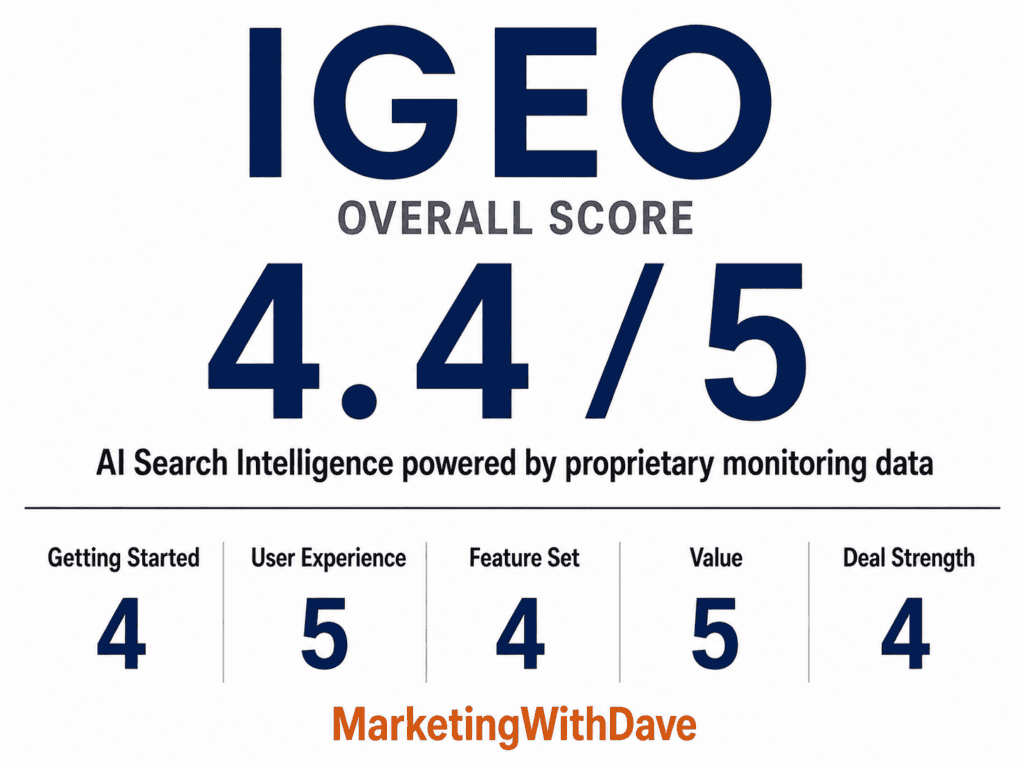
The overall score reflects both product quality and how compelling the current deal is.
The 4.1 reflects strong immediate value as a WordPress security audit tool with helpful explanations and practical one-click fixes, balanced by the need for judgment when applying recommendations and a feature set that works best as part of a broader security setup.
My Actual Scan Results
These results are from my own WordPress website.
Results from initial scan
After running the initial scan, WP Security Ninja returned a mix of passed checks, warnings, and failures. Some were obvious fixes. Some required judgment. A few were the kind of recommendations I would not apply without thinking carefully first.
My WP Security Ninja scan results after applying the fixes that made sense for my setup.
What I Fixed and Why
Issue
Why It Matters
What I Did
XML-RPC exposed
Can be abused by bots and brute force attempts if you do not need it.
Used the built-in fix to reduce exposure.
Plugin and theme file editor enabled
If an attacker gets admin access, the file editor makes damage easier.
Disabled it in one click.
wp-config.php permissions too open
This file contains database credentials and other sensitive configuration details.
Changed permissions from 644 to 440.
Unused theme installed
Inactive themes can still carry security risk if outdated.
Deleted it manually.
Weekly backups only
A weekly backup can leave too much recovery gap if something breaks midweek.
Switched to daily backups using my existing backup plugin.
What I Skipped and Why
This is where the tool requires judgment, not blind trust.
Issue
Why I Did Not Rush to Fix It
My Call
Moving wp-config.php
Restructuring folder paths on a live website can break things you did not expect.
Skipped it.
Changing the database table prefix
Low practical security benefit. Higher risk of breaking something on an existing website.
Skipped it.
Content Security Policy header
Valuable when configured correctly, but easy to break analytics, embeds, ads, or scripts if handled poorly.
Left it for later.
REST API enabled
Normal WordPress behavior. Not an automatic problem.
Not treated as urgent.
WordPress version visible
Bots targeting WordPress already assume it is WordPress. This is low priority.
I know enough about WordPress security to know it matters. I also know I am not a developer and if it wasn’t for vibe coding, I still wouldn’t be coding. That gap is exactly where WP Security Ninja is useful.
Disabling the file editor, tightening wp-config.php permissions, and reducing XML-RPC exposure were clear wins. They were fast, explained well enough to understand the risk, and did not require manually editing configuration files.
This is where the product delivers on the AppSumo positioning. You install the plugin, run the wizard, scan your website, review the failed checks, and apply some fixes directly from the dashboard.
One feature to note: the Security Advisor AI requires WordPress version 7 that is not currently available. I focused this review on what the product delivers today.
Beyond the Scan: Firewall, Malware, Login Protection, and Logs
The security test is only one part of the product. WP Security Ninja also includes firewall protection, malware scanning, login form protection, event logging, and blocking features for suspicious activity.
The login protection is especially relevant because brute force attempts are one of the most common issues WordPress website owners have to think about. Features like failed-login blocking, login error hiding, and login URL changes are practical additions if you are trying to reduce obvious attack paths.
While the scan helps identify issues, these features are what continue working in the background. The firewall and login protection are designed to reduce common attack attempts, even if you do not actively monitor them day to day.
The Part That Requires Caution
The tool presents failed checks in a way that can make every item feel equally urgent. They are not.
Changing a database prefix on a live website is a good example. It sounds like a meaningful security improvement. In practice, the benefit is minimal and the risk of breaking something is real. A failed check on that item does not mean you should rush to fix it.
The scanner is useful. The score is a helpful starting point. But you still need to think about which fixes make sense for your specific setup before applying them.
What WP Security Ninja Does Not Replace
WP Security Ninja does not replace strong passwords, regular plugin updates, off-website backups, quality hosting with server-level protection, or a broader security layer like Cloudflare.
It works best as a fast audit and hardening tool alongside those basics, not instead of them.
Bottom Line
WP Security Ninja helped me find real issues on my own WordPress website and fix several of them in under an hour. The one-click fixes for file editor access, wp-config.php permissions, and XML-RPC exposure alone made it worth the install.
The score is not the goal. The goal is understanding which issues on your specific website are worth fixing, which ones are safe to apply quickly, and which ones look scarier than they are.
If you own a WordPress website and want a practical way to audit and harden your setup without it becoming a development project, WP Security Ninja is worth a look.
Just do not confuse a cleaner scan with complete security.
This content is for educational purposes and reflects my experience, review of the product, and current publicly available deal information. Always evaluate tools based on your specific business needs, goals, and workflows before making a decision.