Website

wordpress plugins

The 10 WordPress Plugin Categories Every Serious Website Needs

Reading Time: 6 minutes

Most “top WordPress plugins” lists create the same problem they claim to solve: plugin bloat.

The better approach is to start with the capabilities your website needs, then choose the lightest, most reliable plugin that delivers that capability.

In many cases, you already have what you need installed, and the smartest move is removing duplicates.

Why WordPress plugins are both powerful and dangerous

One of the best things about WordPress plugins is how easy they are to install. One click, a quick setup screen, and a new capability is live on your site.

That is also the biggest risk.

Because plugins are so easy to add, they are easy to forget about. They quietly update in the background, add scripts to every web page, change behavior over time, or overlap with other tools you install later. Months can pass before you realize a plugin is slowing down your site, breaking tracking, or creating conflicts you did not anticipate.

This is why documentation matters.

Every plugin you install should have a clear purpose. Write down why you installed it, what problem it solves, and what would break if you removed it. This creates a simple reference point when you are considering adding a new plugin and helps prevent accidental duplication.

When a new plugin looks appealing, ask one question first: does this solve a new problem, or does it overlap with something I already have installed?

That habit alone will prevent most plugin related issues before they ever happen.

The top 10 WordPress plugin categories every serious website should have

Below are the 10 plugin categories that cover the real needs of most websites. For each category, I will explain what it does, why it matters, what to look for, and a few solid plugin examples.

1. SEO management

What it does: Helps you control key on web page SEO elements like titles, meta descriptions, canonical URLs, robots settings, XML sitemaps, and structured data.

Why it matters: A good SEO plugin reduces preventable SEO mistakes and makes optimization repeatable.

What to look for: Clean technical output, stable updates, useful schema support, and easy controls for indexing and canonicalization.

Examples: Yoast SEO, Rank Math.

Practical note: One SEO plugin is enough. Do not stack multiple SEO plugins, because they can fight each other and generate duplicate metadata.

2. Analytics and measurement

What it does: Connects your site to measurement tools so you can understand traffic, behavior, content performance, and conversions.

Why it matters: If you cannot measure it, you cannot improve it.

What to look for: Reliable connections to Google tools, minimal performance impact, and a setup that avoids duplicate tracking.

Examples: Site Kit by Google, Google Tag Manager implemented directly (without extra plugins) when you want full control.

Practical note: Use one clear approach for Google Analytics (GA4) and tag deployment. If you are using Site Kit, avoid adding extra plugins that claim to do the same job unless you have a specific need and a clear plan to prevent double counting.

3. Caching and performance

What it does: Improves load speed through caching, minification, compression, and performance tuning.

Why it matters: Speed impacts user experience, SEO, and conversions.

What to look for: Simple settings, predictable caching behavior, and compatibility with your hosting environment.

Examples: WP Fastest Cache, WP Rocket.

Practical note: If your hosting provider already applies heavy caching, you may need fewer caching features at the plugin level. The goal is improved performance, not competing layers of caching that make debugging impossible.

4. Image optimization

What it does: Compresses images, converts formats, and reduces image payload so your web pages load faster.

Why it matters: Images are usually the largest files on most web pages.

What to look for: Strong compression quality, automatic optimization on upload, WebP support, and bulk optimization tools.

Examples: ShortPixel Image Optimizer, Smush.

Practical note: One image optimizer is enough. Avoid running multiple image compression plugins at the same time.

5. Backups and disaster recovery

What it does: Creates scheduled backups and helps you restore your site if something breaks.

Why it matters: Updates, conflicts, and user error happen. Backups are what turn a crisis into a minor inconvenience.

What to look for: Scheduled backups, offsite storage support, easy restores, and clear retention settings.

Examples: UpdraftPlus.

Practical note: You only need one backup system as your primary. More than one can waste storage, create confusion, and sometimes overlap in ways that slow down your site.

6. Redirect and URL management

What it does: Helps you manage 301 redirects and fix broken URLs without editing server files.

Why it matters: Redirects protect SEO value and prevent users from landing on dead ends.

What to look for: Simple redirect creation, regex support if you need it, logging, and easy export.

Examples: Redirection.

Practical note: This is one of the most underrated plugins on the internet. A clean redirect setup is the difference between “small changes” and “accidental SEO damage.”

7. Forms and lead capture

What it does: Adds contact forms, lead forms, surveys, and other ways for visitors to reach you or convert.

Why it matters: Most websites need at least one way for people to take action.

What to look for: Spam protection, simple form building, reliable email delivery, and basic integrations if needed.

Examples: WPForms, Gravity Forms.

Practical note: If you only need a basic contact form, keep it simple. If you need complex workflows, conditional logic, and deeper integrations, consider a more advanced option.

8. Code and snippet management

What it does: Lets you safely add code snippets and scripts without editing theme files.

Why it matters: It keeps your changes organized and reduces the risk of breaking your theme during updates.

What to look for: Conditional logic, safe snippet controls, and clear management of where code loads.

Examples: WPCode.

Practical note: A snippet plugin is especially useful for marketers because you will occasionally need to add tracking, verification tags, schema, or small customization scripts.

9. Search and onsite content discovery

What it does: Improves internal site search so visitors can find content quickly.

Why it matters: On content heavy sites, search is a hidden conversion tool. It helps users stay longer and find the exact article or tool they came for.

What to look for: Better relevance than default WordPress search, useful reporting on search terms, and lightweight performance.

Examples: SearchIQ, other search enhancement plugins depending on your content size and budget.

Practical note: If you enable site search, actually look at your search terms. They can become your next blog post topics, your next calculator idea, and your next internal linking plan.

10. Security and site hygiene

What it does: Helps protect your site from common attacks and strengthens basic security posture.

Why it matters: A hacked site is not just a technical issue. It is a trust and business problem.

What to look for: Reputation, clear security features, and settings you will actually maintain.

Examples: Wordfence, Sucuri.

Practical note: Some site owners rely on strong hosting security and keep WordPress level security plugins minimal. That can be a valid strategy if you are disciplined about updates, strong passwords, and access controls.

A quick guide to avoiding plugin bloat

Here are a few rules I use to keep WordPress lean and stable.

Rule 1: Never install two plugins that solve the same core problem.

Rule 2: If a plugin is only useful during troubleshooting, deactivate it when you are done. This applies to tools like Query Monitor.

Rule 3: Every quarter, review your plugin list and ask one question: “If I removed this today, would my site still meet my goals?” If the answer is yes, it is a removal candidate.

Rule 4: If a plugin adds scripts to every web page and you are not sure why, investigate. Extra scripts often create tracking issues, performance issues, or both.

My current “baseline stack” for a marketing focused WordPress site

If you want a simple, practical baseline, here is what I would aim for on a site focused on content, tools, and measurement.

SEO: One plugin (example: Yoast SEO).

Measurement: One clear approach (example: Site Kit by Google, plus Google Tag Manager deployed cleanly).

Performance: One caching plugin or a host level solution (example: WP Fastest Cache).

Images: One image optimizer (example: ShortPixel).

Backups: One backup plugin (example: UpdraftPlus).

Redirects: One redirect manager (example: Redirection).

Forms: One forms plugin (example: WPForms).

Snippets: One code manager (example: WPCode).

Search: Add only if it is needed (example: SearchIQ).

Security: Add based on your risk tolerance and hosting setup (example: Wordfence).

Final thought

The best WordPress plugin list is not the longest list. It is the list that covers your real needs with the fewest tools, the least overlap, and the clearest ownership of what each plugin is responsible for.

The 10 WordPress Plugin Categories Every Serious Website Needs Read More »

top 10 site search tracking capabilities every website should measure

Top 10 Site Search Tracking Capabilities Every Website Should Measure

Reading Time: 6 minutes

Internal site search is one of the clearest signals of customer intent you can collect on a website. It is a moment where someone stops browsing and tells you, in their own words, what they want.

That makes site search data valuable for three different teams at once: analytics, marketing, and website optimization. Analytics uses it to measure success and friction. Marketing uses it to learn language, demand, and intent. Optimization teams use it to improve findability, navigation, and conversion paths.

When you add a third party martech integration to track site search, the goal should not be “we track searches.” The goal should be “we can connect searches to journeys and outcomes, then act on what we learn.”

Why site search tracking deserves special attention

Site search does not behave like typical web events. The same user can run multiple searches in one session, refine terms quickly, apply filters, click multiple results, and then convert later after leaving and returning.

If your tracking only records a generic “search happened” event, you lose the most valuable parts: what they searched, whether they found anything useful, and what happened next.

A strong site search tracking setup captures the full story: query, context, result quality, engagement, and downstream impact.

The Top 10 must have capabilities for site search tracking

1. Core search event and query capture

This is the foundation. You need reliable, structured capture of the search term a user entered, plus the context around it.

At a minimum, capture the query text, the timestamp, the web page where the search was initiated, and a session identifier. If your website supports multiple search experiences such as header search, in page search, instant search, or voice search, distinguish them so you can compare performance.

If a vendor cannot prove that their capture is complete and consistent across devices, browsers, and privacy settings, everything built on top of it becomes untrustworthy.

2. Analytics platform integration and clean data model alignment

Your website analytics platform is still your source of truth for cross site behavior. A third party tool should enhance search tracking, not isolate it.

Look for a solution that can send well structured search events into your analytics platform with consistent naming, stable parameters, and clear definitions. You should be able to join search activity to other events in the session, like product views, content reads, signups, add to cart, form starts, and purchases.

This is also where you protect reporting quality. A clean schema helps prevent duplicate events, missing parameters, and confusion about what a metric truly represents.

3. Zero results and search failure detection

Zero results are a direct signal of unmet demand. They also highlight content gaps, catalog gaps, and taxonomy problems.

Track when a search returns zero results, and treat it as a first class event tied to the query. Also track other failure signals such as immediate exits after searching, repeated searches with slight variations, or rapid refinements. These patterns often indicate that results are technically present but functionally unhelpful.

This capability alone can drive meaningful improvements to content planning, product availability, and user experience.

4. Search result interaction tracking and relevance measurement

Knowing the query is not enough. You need to know whether the results worked.

Track clicks on search results, including which item was clicked and the position it appeared in. Track time to first interaction after results load. Track low engagement results where people search but do not click anything.

These signals help you answer a crucial question: are your search results relevant for the terms people use, and are top ranked results earning clicks?

Whether your search results include images, pricing, badges, or promoted items, your tracking should allow you to measure how those elements influence engagement and conversion. The goal is not just to know what was shown, but to understand which result attributes drive clicks and successful outcomes.

5. Conversion and downstream outcome attribution

Search tracking becomes strategic when it connects to outcomes.

Measure which queries lead to purchases, leads, signups, demo requests, subscriptions, downloads, or any key action on your site. In many cases, search assists conversions rather than directly causing them, so your reporting should support viewing search as part of a path, not just a last click moment.

This helps you identify high intent queries, prioritize optimization work, and justify investment in improving search relevance.

6. Facet, filter, and refinement behavior tracking

Filters and facets are a window into user intent. They show how people narrow choices when a query is broad or ambiguous.

Track which filters are applied after a search, the order of application, and whether filter usage correlates with higher conversion rates. If your site supports sorting, track sort changes as well.

This information often reveals gaps in taxonomy, missing facet options, and opportunities to adjust default sorting to better match what people want.

7. User journey and cross session search behavior

Many journeys span multiple sessions. A user might search on day one, browse more on day two, then convert later.

Choose a solution that can support journey level analysis while respecting privacy requirements. You want to understand returning search patterns, repeated terms, and topic progression across visits. Even for anonymous users, aggregated journey patterns are valuable.

This is especially important for SaaS and content sites where research behavior can unfold over time.

8. Reporting, dashboards, and data access for deeper analysis

Built in dashboards are helpful for quick insights, but long term value depends on data access.

Look for strong reporting on top queries, trending queries, zero results terms, click through rates, conversions by query, and filter usage. Then confirm you can export raw logs or access them via API so analysts can run deeper segmentation, clustering, and trend analysis in BI tools or data warehouses.

Without accessible data, you will eventually hit a ceiling where the tool shows you what it wants to show, not what you need to answer.

9. Alerts, workflows, and operational triggers

Insights should create action.

Strong solutions support alerts for spikes in zero results, sudden surges in particular queries, drops in result engagement, or outages. Better solutions also support rule based workflows, such as notifying a content owner when a topic is trending, alerting merchandising when a product category spikes in searches, or flagging terms that indicate confusion.

This turns search tracking into an operational advantage instead of a weekly report.

10. Governance, privacy, and scalability controls

Search terms can contain sensitive information. Your tracking must handle privacy correctly.

Look for controls that help you avoid collecting personal data in search logs, respect consent, manage retention, and support anonymization where needed. Confirm the solution can scale to your traffic levels without sampling away the very events you care about.

Governance is not a nice to have. It is what makes search tracking safe, stable, and usable at scale.

How these capabilities map to the customer journey

Site search appears at multiple points in the journey.

In discovery, people search to learn and compare. In evaluation, they refine and filter. In conversion, they search to confirm details, find a product, locate pricing, or look for support. After conversion, they search for onboarding, documentation, troubleshooting, or account tasks.

That is why a good tracking approach connects search to what happens next. When you can see which searches lead to success, which searches signal friction, and which searches indicate new demand, you can make improvements across content, product, and experience.

Common mistakes that limit the value of site search tracking

One common mistake is tracking only a single generic event, without capturing the query and result quality signals. Another is ignoring zero results and refinement patterns, which are often the most actionable insights.

A third mistake is leaving search data trapped inside a third party dashboard without integrating it into your broader analytics and customer journey reporting.

Finally, many teams forget to operationalize insights. If no one owns responding to the data, you will learn interesting things but not improve outcomes.

How to evaluate vendors without getting lost in feature claims

When comparing tools, focus on proof rather than promises. Ask vendors to demonstrate real data capture, including edge cases like searches with filters, searches with no clicks, and searches that lead to conversion later in the session.

Ask how the data is structured, how it integrates with your analytics platform, and how easily you can export raw logs. Ask what privacy controls exist for handling sensitive search terms.

Then ask how the tool helps you act. Alerts, workflows, and clear ownership pathways are often the difference between a tool you admire and a tool that creates measurable improvement.

Closing thought

If you want to understand customer intent, site search is one of the most direct signals you can capture. The best third party integrations do more than log queries. They connect intent to outcomes, reveal friction in the journey, and help teams take action quickly.

If your site search tracking can do the ten capability areas above, you are not just measuring behavior. You are building a feedback loop that improves the website experience and business results over time.

Top 10 Site Search Tracking Capabilities Every Website Should Measure Read More »

dont make me think

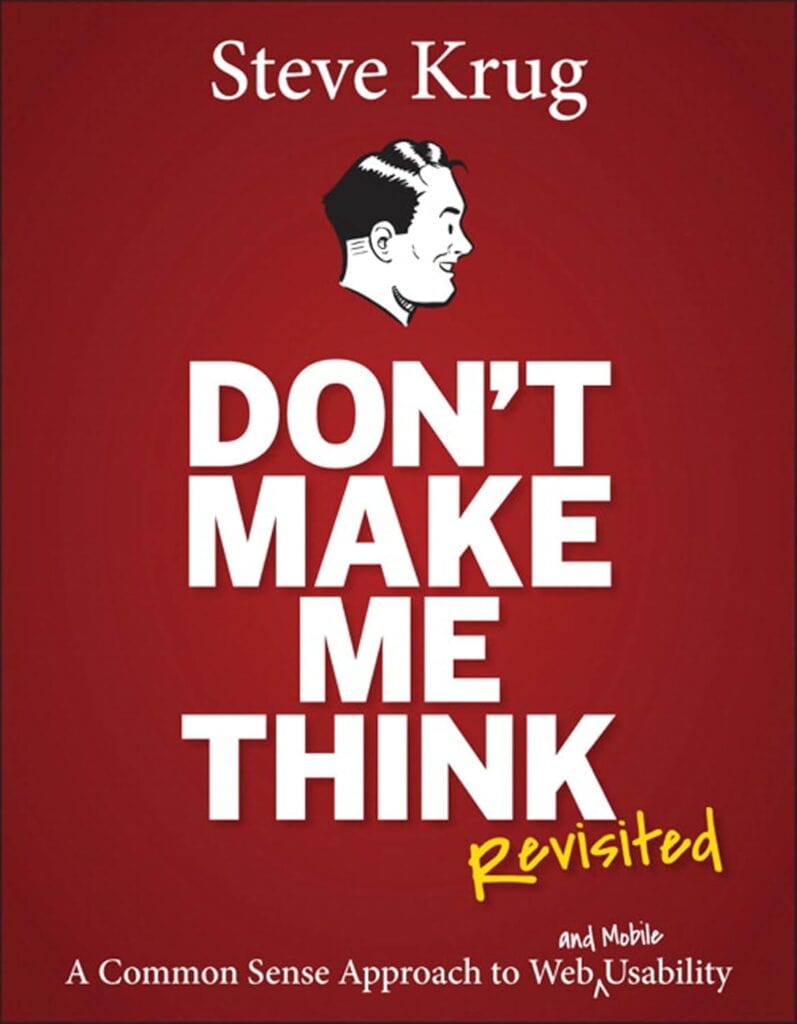
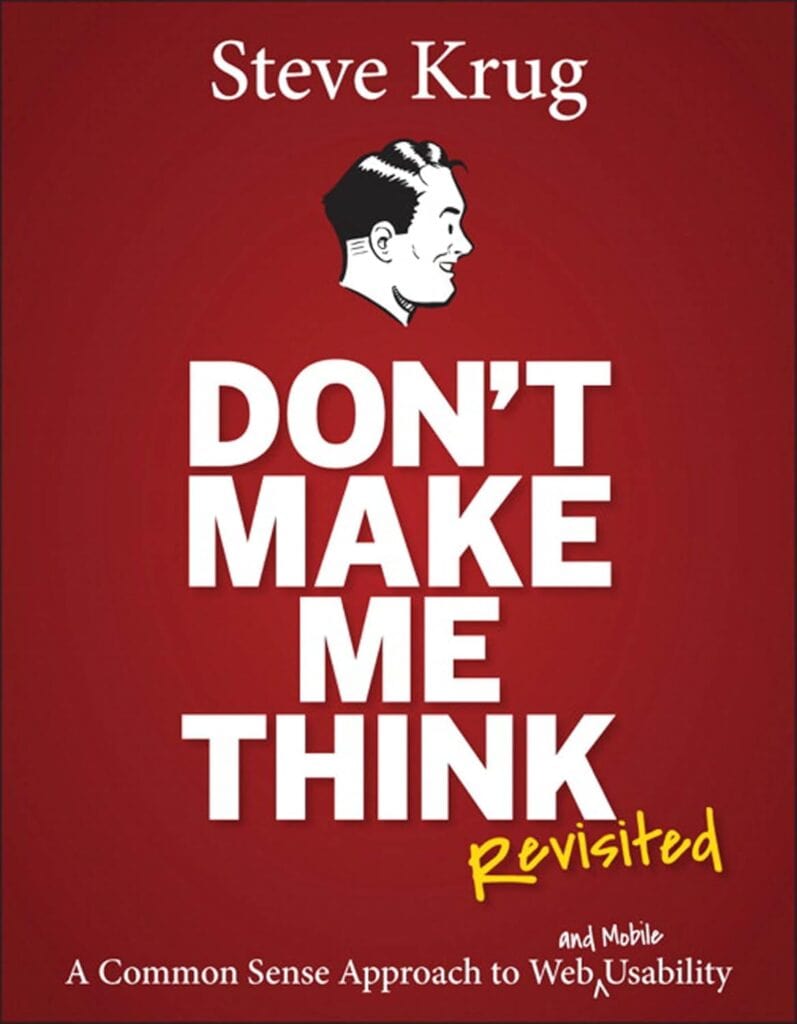
Don’t Make Me Think by Steve Krug Book Summary

Reading Time: 6 minutes

Top Three Quotes

  • “Don’t make me think!” – Steve Krug’s core mantra, meaning a website should be obvious and self-explanatory.
  • “It doesn’t matter how many times I have to click, as long as each click is a mindless, unambiguous choice.” – Emphasizes that clarity of each action matters more than minimizing the number of clicks (Krug’s second law of usability).
  • “Get rid of half the words on each page, then get rid of half of what’s left.” – Krug’s third law, urging the elimination of unnecessary content to reduce clutter and cognitive load.

Book Theme

Don’t Make Me Think focuses on web usability and intuitive design. Its central message is that websites (and apps) should be built so that users can navigate and accomplish tasks without having to consciously figure out how to use them. The book emphasizes simplicity, clarity, and common-sense design principles to make the user experience effortless.

Why You Should Read This Book

This book is a highly accessible introduction to usability, packed with practical advice and humor. It distills complex user-experience ideas into simple, memorable principles. Anyone involved in designing or building websites – from UX/UI designers and developers to product managers and entrepreneurs – will learn how to avoid common pitfalls, streamline their designs, and create more user-friendly sites. Even non-technical readers can grasp its concepts quickly, making it a valuable resource for anyone who wants to improve the usability of their digital products.

Key Ideas and Arguments Presented

  • Don’t Make Me Think: A website should be self-evident. Every page and element should be obvious, requiring minimal conscious thought from the user.
  • Users Scan and Satisfice: People tend to glance at web pages for relevant information and will pick the first acceptable option (rather than the “best” one). Design should accommodate this behavior.
  • Design for Scanning: Since users scan rather than read, use familiar layouts (logo links home, menus on top/left), clear visual hierarchies, headings, bullets, and short paragraphs to make content easy to find at a glance.
  • Mindless Clicks Rule: The number of clicks matters less than the ease of each click. Every link or button should be an obvious, unambiguous choice, giving users confidence they are on the right path (Krug’s second law of usability).
  • Kill Unnecessary Words: Most people don’t read everything. Eliminate filler text (“happy talk”) and long instructions, writing only what is essential (Krug’s third law: cut half the words on a page, then half of what’s left).
  • Clear Navigation is Vital: Treat navigation as the backbone of your site. Include persistent menus, a clickable logo/Home link, page titles, breadcrumbs, and a search box so users always know where they are and how to get to key sections.
  • Home Page Clarity: The home page must quickly answer what the site is and what users can do there. First impressions matter (Krug’s “Big Bang Theory of Web Design”), so clearly state the site’s purpose and primary entry points.
  • Test, Don’t Guess: Team debates about design often go nowhere. Usability testing with real users (even a few at a time) provides objective evidence of what works and what doesn’t, replacing endless arguments.
  • Usability is Courtesy: Good design is considerate design. Avoid frustrating users with hidden info or poor organization; every hiccup (broken link, cryptic label, unexpected behavior) wastes their time and erodes trust.
  • Mobile and Accessibility: Recognize mobile screens as “itty-bitty living spaces” that require ruthless prioritization, and treat accessibility as a moral imperative. Make sites usable for everyone, not just on desktops.

Book Outline

  • Chapter 1: Don’t Make Me Think
  • Chapter 2: How We Really Use the Web
  • Chapter 3: Billboard Design 101
  • Chapter 4: Animal, Vegetable, or Mineral?
  • Chapter 5: Omit Needless Words
  • Chapter 6: Street Signs and Breadcrumbs
  • Chapter 7: The Big Bang Theory of Web Design
  • Chapter 8: “The Farmer and the Cowman Should Be Friends”
  • Chapter 9: Usability Testing on 10 Cents a Day
  • Chapter 10: Mobile: It’s Not Just a City in Alabama Anymore
  • Chapter 11: Usability as Common Courtesy
  • Chapter 12: Accessibility and You
  • Chapter 13: Guide for the Perplexed

Key Takeaways

  • Websites should be obvious and intuitive, allowing users to accomplish their tasks without extra effort or thought.
  • Users are goal-oriented and impatient: they scan pages, click quickly, and avoid reading large blocks of text.
  • Clarity and simplicity are paramount. Remove distractions and unnecessary content so users can focus on their objectives.
  • Familiar conventions and clear structure help users navigate quickly (e.g., placing the logo as a home link, organizing menus logically).
  • Every design decision should be validated by testing with real users. Observing users in action reveals problems far more effectively than theoretical debate.
  • Good usability is a form of courtesy: respecting users’ time and intelligence builds trust and satisfaction.
  • Usability principles apply to all contexts, including mobile interfaces and accessibility for people with disabilities.

Key Techniques

  • Billboard Design: Format pages like billboards. Use clear headings, bullet points, and visual cues so users can instantly grasp the page’s purpose without reading everything.
  • Trunk Test: A quick navigation check. Imagine landing on a page blindfolded; can a user immediately identify where they are and how to navigate to main sections?
  • Discount Usability Testing: Conduct simple, regular tests on a small budget. Test with just 3 users (taking one morning per month) to identify major usability issues quickly.
  • Think-Aloud Protocol: During testing, ask users to verbalize their thoughts. This reveals where they get confused or frustrated and why.
  • Content Pruning: Systematically eliminate half the words on a page, then half again. This forces you to cut fluff (especially “happy talk” and long instructions) and highlight only essential information.
  • Conventions vs. Clarity: Follow common UI conventions (standard navigation, link styles, icons) unless you have a clearly better alternative. If breaking a convention, ensure the replacement is unmistakably clear to users.

Author’s Qualifications

Steve Krug is a veteran usability consultant and author. Based in Massachusetts, he has advised and taught web usability practices for decades. Don’t Make Me Think is his most famous work (now in its third edition with hundreds of thousands of copies sold worldwide), and he also wrote Rocket Surgery Made Easy, a companion guide to usability testing. Krug runs the consultancy Advanced Common Sense and conducts workshops on practical UX techniques. His extensive real-world experience and straightforward writing style make him a respected authority on web design usability.

Comparison to Similar Books

  • The Design of Everyday Things (Don Norman) is a classic on general design psychology and affordances for everyday objects; by contrast, Don’t Make Me Think applies common-sense usability specifically to websites in an easy-to-digest format.
  • Rocket Surgery Made Easy (Steve Krug) is essentially a follow-up focusing entirely on conducting DIY usability tests. Together, these two books cover both design principles (Don’t Make Me Think) and testing methods.
  • Usability Engineering (Jakob Nielsen) and related Nielsen books provide research-based guidelines and heuristics. Krug’s book is more anecdotal and conversational, trading academic detail for a practical, engaging approach.
  • About Face (Alan Cooper) and *The Elements of User Experience* (Jesse James Garrett) offer comprehensive theories and frameworks for interaction design; Don’t Make Me Think zeroes in on the core goal of making the interface obvious and easy to use, with much less technical depth.
  • Thanks to its concise style and humor, Don’t Make Me Think is often used as an introductory read, whereas many other UX books (like Lean UX or 100 Things Every Designer Should Know) may delve deeper into processes or psychology. However, all of these works share the goal of improving user experience, and readers often pair Krug’s book with more detailed texts as their understanding grows.

Target Audience

  • Web designers and user-interface (UI) professionals
  • UX practitioners and user experience researchers
  • Front-end developers and software engineers working on web products
  • Product managers and startup founders overseeing digital products
  • Content strategists and information architects
  • Digital marketers and e-commerce managers responsible for website usability
  • Students and beginners learning about web and UX design principles

Critical Response to the Book

Don’t Make Me Think has been widely praised in the tech and design communities as an engaging, no-nonsense introduction to web usability. It consistently appears on lists of top UX books and is often taught in design courses. Reviewers and readers applaud Krug’s clear, humorous writing and the book’s practical focus. It has sold hundreds of thousands of copies and been translated into multiple languages, evidencing its popularity. Critics note that while the book’s advice may seem like “common sense” in hindsight, its real value lies in highlighting principles that many designers overlook. There are few negative critiques; even years after publication its ideas remain relevant, especially after updates for mobile. In short, it’s regarded as a classic and essential resource for anyone interested in usability.

One Sentence Takeaway

Design your website or app so that users can accomplish their goals effortlessly – it should never make them stop and think about how to use it.

Don’t Make Me Think by Steve Krug Book Summary Read More »

making websites win

Making Websites Win by Karl Blanks and Ben Jesson Book Summary

Reading Time: 3 minutes

Top Three Quotes

• “Most websites lose. Almost all of them.”

• “Design that ignores customers is not design at all.”

• “Conversion rate optimization is web design done right.”

Book Theme

Making Websites Win focuses on conversion rate optimization as a customer-centric, research-driven discipline for designing websites that consistently increase sales, leads, and long-term business value. It argues that most web design fails because it prioritizes aesthetics, opinions, or trends instead of measurable customer behavior.

Why You Should Read This Book

• You should read this book if you want to increase website performance in a measurable, repeatable way rather than relying on guesswork.

• It provides a proven framework for diagnosing why websites fail and shows how to fix those failures using research, testing, and customer insight.

• The book is especially valuable if your website is already getting traffic but not converting at the level it should.

Key Ideas and Arguments Presented

• Most websites underperform because they are designed for internal opinions rather than customer needs.

• Conversion rate optimization has a disproportionate impact on profit, not just revenue.

• Small improvements across multiple steps in a funnel compound into dramatic gains.

• Testing removes opinion-driven decision making and replaces it with evidence.

• A/B testing measures success but does not generate good ideas on its own.

• Customer understanding must come before design changes.

• Large, insight-driven changes outperform small cosmetic tweaks.

• High-performing websites prioritize function over visual novelty.

• Lifetime customer value is a critical metric that is often ignored.

• CRO creates a virtuous cycle that enables growth in advertising, SEO, and competitive advantage.

Book Outline

• Section 1: Why Most Web Design Is Done Wrong and How to Do It Right

• Section 2: Diagnosis Tools and Techniques to Understand Visitors

• Section 3: Common Conversion Problems and Proven Solutions

• Section 4: A Detailed Case Study Demonstrating CRO in Action

Key Takeaways

• Customer-centric design consistently outperforms design driven by trends or aesthetics.

• Diagnosis must always come before solution.

• CRO is one of the fastest ways to improve profitability.

• Large improvements usually come from fixing fundamental issues, not polishing details.

• Testing protects businesses from costly mistakes.

• CRO skills are transferable across industries, platforms, and career paths.

Key Techniques

• DiPS framework: Diagnose, identify the Problem, then apply the Solution.

• A/B testing and multivariate testing to validate changes.

• Visitor research through analytics, surveys, user testing, and session recordings.

• Functional copywriting focused on clarity and persuasion.

• Funnel optimization for both early-stage and late-stage buyers.

• Risk reduction through guarantees, proof, and trust signals.

• Managing complexity in high-consideration purchase journeys.

Author’s Qualifications

• Dr. Karl Blanks holds a PhD from Cambridge and applies scientific methodology to marketing optimization.

• Ben Jesson is a conversion expert with extensive hands-on experience scaling online businesses.

• Together they founded Conversion Rate Experts, a global CRO consultancy.

• Their firm has worked across more than 80 industries, multiple languages, and dozens of countries.

• Conversion Rate Experts has generated billions in additional revenue for clients and received the UK Queen’s Award for Enterprise in Innovation.

Comparison to Similar Books

• Unlike general marketing books, this book focuses narrowly on conversion outcomes rather than broad strategy.

• Compared to analytics books, it emphasizes customer psychology and usability over dashboards and reports.

• Compared to design books, it rejects aesthetics as a primary goal unless supported by evidence.

• It complements books like Web Analytics 2.0 by focusing on action rather than measurement alone.

Target Audience

• Digital marketers responsible for website performance

• Conversion rate optimization practitioners

• Founders and startup teams

• Product managers and growth teams

• UX designers seeking measurable impact

• Executives overseeing digital strategy

Critical Response to the Book

• The book is widely praised for its practical, experience-based approach.

• Industry leaders highlight its focus on real results rather than theory.

• It is frequently cited as a foundational text for CRO professionals.

• Readers value its depth, though some note it requires commitment to fully apply.

One Sentence Takeaway

Making Websites Win shows that deeply understanding customers and rigorously testing solutions is the most reliable way to build websites that grow profitably and sustainably.

Making Websites Win by Karl Blanks and Ben Jesson Book Summary Read More »

a historical evolution of websites

A Historical Evolution of Websites

Reading Time: 3 minutes
1960s–1980s: Laying the Groundwork

1960s – Pre-web internet: The U.S. Defense Department’s ARPANET connects the first computer networks, laying the foundation for global digital communication.

1989 – The Web concept is born: At CERN, Tim Berners-Lee proposes a universal hyperlinked information system, combining internet and hypertext ideas. This “World Wide Web” concept sets the stage for websites as we know them.

1990s: The World Wide Web Emerges

1990–1991 – Invention of the Web: Tim Berners-Lee develops the first web server and browser in 1990, then on August 6, 1991 he launches the world’s first website. That simple text page (hosted at info.cern.ch) explained the World Wide Web project and marked the public start of the Web era.

1993 – The Web goes public: CERN opens the Web’s technology to everyone, making it free to use. The same year, the Mosaic browser introduces inline images (pictures on webpages alongside text), a breakthrough that helped spark mainstream web adoption.

Mid-1990s – Explosion of websites: Once commercial use of the Internet is allowed in 1995, businesses and individuals rush online. Websites skyrocket from just 130 sites in 1993 to over 23,500 by 1995. Sites also become more interactive and visually rich – by the late ’90s many feature images, animated GIFs, and basic JavaScript for pop-up effects or scrolling text.

1996 – Web design comes of age: The introduction of Cascading Style Sheets (CSS) gives designers more control over page layout and styling, separate from HTML content. Along with new web standards, this makes sites more consistent across browsers and easier to maintain as they grow in complexity.

2000s: The Interactive Web and Social Media

2000 – Dot‑com bubble bursts: After a frenzy of growth in the late ’90s, the dot‑com bubble collapses in early 2000, causing many internet startups to fail. Yet the Web itself keeps growing and evolving through the downturn.

Early 2000s – Dynamic, data‑driven sites: Websites transition from static pages to interactive applications. New techniques (like AJAX) allow web pages to update seamlessly with fresh data. Server-side scripting and databases power richer features, and content management systems such as WordPress (2003) and Joomla (2005) let people build sites without coding, fueling a blogging boom.

Mid-2000s – Web 2.0 and social media: A more participatory Web emerges. “Web 2.0” sites encourage user-generated content and collaboration. Online social networks like Facebook (2004), YouTube (2005), and Twitter (2006) redefine how people connect and share information, making the Web a social platform.

2010s: Mobile-First Era

2010 – Responsive design: With smartphones on the rise, designers begin using “responsive” web design techniques (introduced in 2010) to ensure sites adapt to different screen sizes. Websites now need to work seamlessly on phones, tablets, and desktops.

2016 – Mobile surpasses desktop: In a major turning point, global web traffic from mobile devices overtakes desktop usage in 2016. This shift forces companies to prioritize mobile-friendly experiences, from simpler navigation to faster loading times for phone users.

2014–2018 – One billion websites: The Web’s growth hits a historic milestone. Around 2014, the number of websites surpasses one billion (though many are inactive or temporary). By the late 2010s, having a website is almost a necessity for businesses of all sizes, and the online economy—from e-commerce to digital media—is a dominant force in daily life.

2020s: Ubiquitous and Evolving

2020 – Pandemic pushes life online: The COVID‑20 pandemic accelerates digital transformation. With lockdowns in effect, organizations large and small rely on websites and web apps for remote work, e-commerce, education, and virtual events. Online traffic and online shopping surge as the world adapts to “everything from home.”

2025 – The Web’s immense scale: As of mid‑2025, there are approximately 1.12 billion websites in existence (though only ~17% are active). Around 73% of businesses globally have a website. Notably, the open-source platform WordPress powers about 43% of all websites on the internet, illustrating the dominance of easy-to-use content management systems.

2020s – Advanced web tech: Modern websites increasingly behave like full applications. Developers leverage powerful JavaScript frameworks and Progressive Web Apps to deliver fast, app-like experiences that can even work offline. Artificial intelligence is also emerging in web development, aiding in content creation and personalization to enhance user experiences.

Ongoing – Web woven into daily life: In just a few decades, the Web has grown from a handful of text pages into an indispensable part of modern life. Websites have fundamentally changed how we access information, shop, socialize, and more. As technology advances, the evolution of websites continues—always adapting to new devices, new demands, and new ways for people to connect.

A Historical Evolution of Websites Read More »

website optimization settings you should know

Website Optimization Settings You Should Know — What to Enable, What to Skip, and Why

Reading Time: 3 minutes

Whether you are running WordPress, another CMS, or a custom website, the tools and toggles in your hosting dashboard and optimization plugins can make a big difference – for better or worse. What many site owners do not realize is that turning on everything often leads to broken layouts, slower performance, or plugin conflicts. This guide explains which optimization settings deliver real gains in speed and stability, which ones are risky, and why.

No-Brainer Optimizations (Turn ON)

  • Collapse Whitespace – reduces HTML size; no layout or SEO impact.
  • Extend Cache and Extend Cache PDFs – improves browser reuse of assets.
  • Pre-Resolve DNS – resolves external domains early (fonts, analytics) for small wins.
  • Remove Comments and Remove Quotes – trims HTML safely.
  • Trim URLs – cleans up and shortens asset URLs on HTTPS websites.
  • Move CSS Above Scripts and Move CSS to <head> – improves how quickly your page looks styled by ensuring CSS loads before scripts.
  • Canonicalize JavaScript Libraries – uses well-cached CDN libraries (like jQuery).
  • Minify JavaScript – removes whitespace and comments without changing behavior.
  • Insert Image Dimensions – stabilizes layout (improves CLS).
  • Lazy Load Images – defers below-the-fold images for faster perceived speed.

Situational Tweaks (Optional)

  • ⚙️ Include JavaScript Source Maps – helpful for debugging; can be off in production.
  • ⚙️ Rewrite Style Attributes with URLs – use only if background images go missing after a migration or CDN change.
  • ⚙️ Convert Meta Tags – harmless but rarely impactful.

Usually Leave OFF (Proceed with Caution)

  • 🚫 Combine CSS and Combine JavaScript – modern browsers already handle multiple requests efficiently; combining can break load order or styles.
  • 🚫 Inline CSS and Inline JavaScript – bloats HTML and interferes with caching; minimal benefit.
  • 🚫 Flatten CSS Imports and Fallback Rewrite CSS URLs – can change style order or break background paths.
  • 🚫 Convert to WebP (animated or lossless), Recompress or Resize Images, Sprite Images – let a dedicated image plugin manage compression and formats.
  • 🚫 Combine Heads – multiple <head> tags suggest a deeper template issue; do not mask it.
  • 🚫 Deduplicate Inlined Images – most sites do not inline large images, so the benefit is negligible.

Optimization Setting Summary

SettingCategoryRecommendationWhy
Collapse WhitespaceHTML✅ OnSmall size reduction; zero risk.
Extend CacheCaching✅ OnImproves browser reuse of assets.
Extend Cache PDFsCaching✅ OnBetter caching for downloadable PDFs.
Pre-Resolve DNSNetworking✅ OnResolves external domains sooner.
Remove CommentsHTML✅ OnTrims HTML safely.
Remove QuotesHTML✅ OnSafe attribute cleanup.
Trim URLsHTML✅ OnLeaner URLs on HTTPS.
Move CSS Above ScriptsCSS✅ OnEnsures styling appears quickly.
Move CSS to <head>CSS✅ OnBest practice for rendering.
Canonicalize JS LibrariesJS✅ OnCDN-cached libraries load faster.
Minify JavaScriptJS✅ OnRemoves whitespace and comments only.
Insert Image DimensionsImages✅ OnReduces layout shifts (CLS).
Lazy Load ImagesImages✅ OnDefers below-fold requests.
Include JS Source MapsJS⚙️ OptionalUseful for debugging only.
Rewrite Style Attrs with URLsCSS⚙️ OptionalUse if backgrounds break post-migration.
Convert Meta TagsHTML⚙️ OptionalMarginal benefit.
Combine CSSCSS🚫 OffCan break order or conditional styles.
Combine JavaScriptJS🚫 OffHigh break risk from load-order changes.
Inline CSSCSS🚫 OffBloats HTML; worse caching.
Inline JavaScriptJS🚫 OffBloats HTML; minimal gains.
Flatten CSS ImportsCSS🚫 OffMay alter cascade or responsive behavior.
Fallback Rewrite CSS URLsCSS🚫 OffRisk of broken paths or backgrounds.
Convert to WebP (Animated or Lossless)Images🚫 OffLet your image plugin handle formats.
Inline ImagesImages🚫 OffBloats HTML; hurts caching.
Recompress ImagesImages🚫 OffAvoid double compression or quality loss.
Resize Images or Resize Mobile ImagesImages🚫 OffLet responsive images handle this.
Sprite ImagesImages🚫 OffOutdated; can misalign icons.
Combine HeadsHTML🚫 OffFix template, do not post-process.
Deduplicate Inlined ImagesImages🚫 OffLittle impact on most sites.

Performance and SEO Checklist

  • Compression: Enable GZIP or Brotli; confirm HTTP/2 or HTTP/3.
  • Caching stack: Avoid duplication; prefer browser and server cache, keep plugin caching simple.
  • CDN: Add Cloudflare (free) for global delivery and SSL simplicity.
  • Database cleanup: Run WP-Optimize or Advanced Database Cleaner to purge revisions, transients, and orphaned meta.
  • Security and backups: Schedule off-server backups; add Wordfence or iThemes Security.
  • Mobile UX: Run Google’s Mobile-Friendly Test; fix tap targets and spacing.
  • Analytics: Verify GA4 beacons after SSL setup.
  • Search Console: Re-verify HTTPS properties; resubmit sitemap; fix mixed content if any.

How to Test Changes Safely

  1. Toggle one optimization at a time; hard-refresh in an incognito window.
  2. Watch for layout shifts, console errors, broken forms, or missing images.
  3. Measure before and after with PageSpeed Insights or GTmetrix.
  4. If something regresses, revert the last toggle and clear caches.

Website Optimization Settings You Should Know — What to Enable, What to Skip, and Why Read More »